Edit a prompt
After you import a public library, you may want to adapt a prompt to your client: shorter label on the bar, clearer description, or different wording in the instruction itself.
For example, you imported a medical pack. The prompt Expand abbreviation is useful, but you want the label to read Expand abbr. and you want to change the prompt text.
To edit a prompt:
1️⃣ Open a project.
2️⃣ Click the ChatGPT button.
3️⃣ Click the Libraries button.
4️⃣ Open the Browse tab.
5️⃣ Select the library that holds the prompt from the Library picklist.
6️⃣ Find the prompt in the list.
7️⃣ Click Edit on that row.
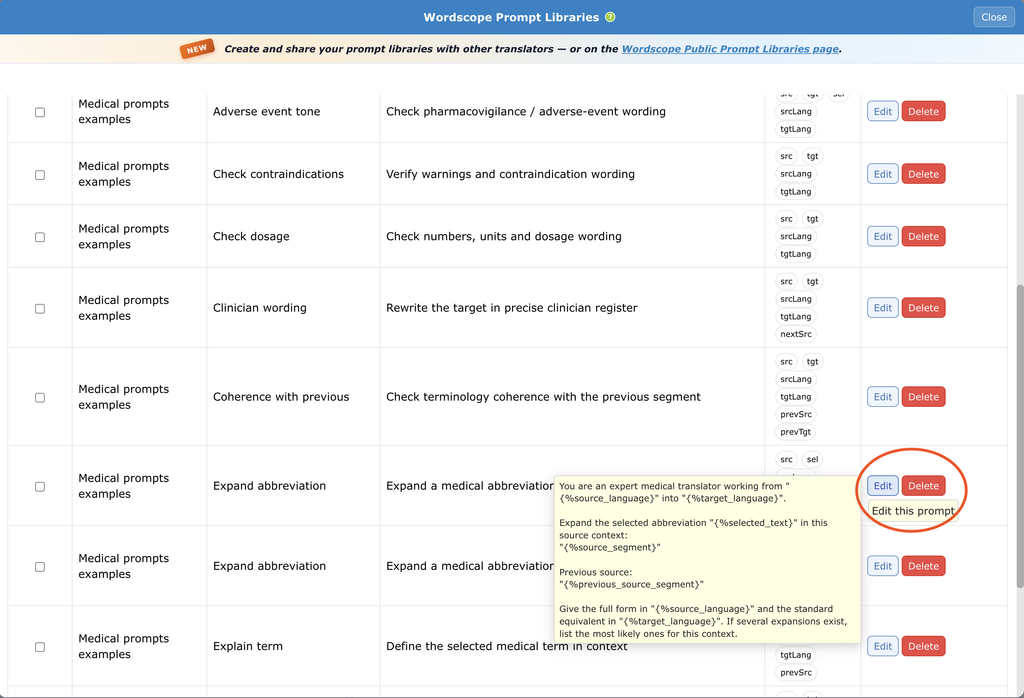
8️⃣ Change the fields you need: Label, Description, the prompt text, Use Live web search, or Apply track changes when the reply is a variant of the target.
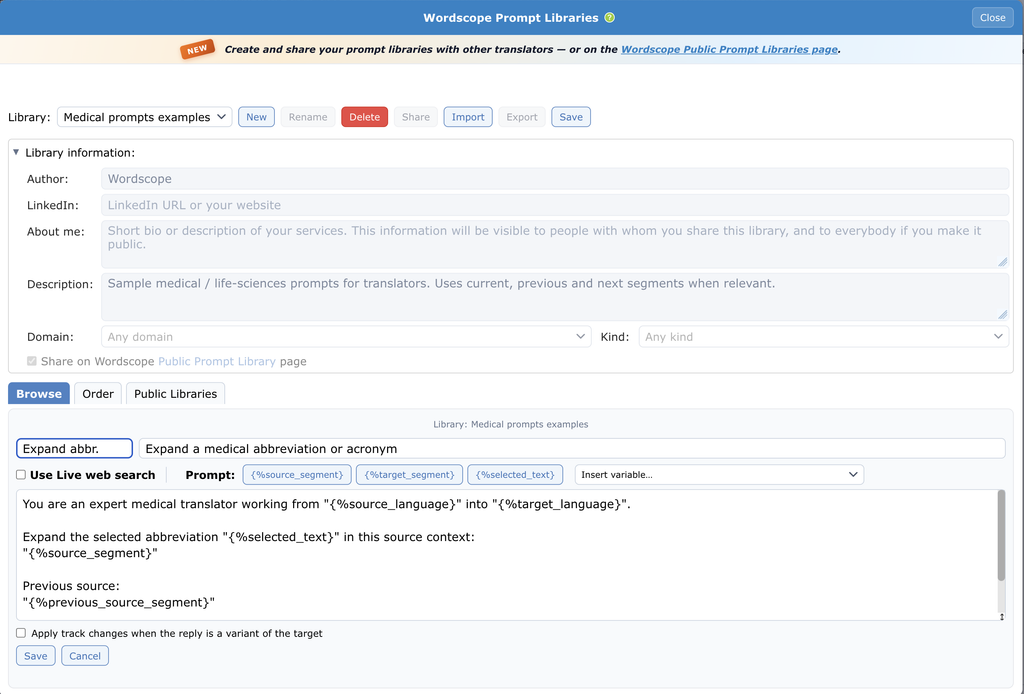
Edit the label or the prompt text
9️⃣ Click Save on the prompt form.
🔟 Click Save again on the Libraries toolbar.
You need both saves: Save on the prompt form keeps the edit in the list; Save on the Libraries toolbar stores it on the server.
If Edit is disabled, the library is protected and you cannot change that prompt. Wordscope built-in action buttons in the Default Library cannot be edited. For those, create your own prompt in a library you own, or import a public pack and edit your copy.
To cancel without keeping the form changes, click Cancel on the prompt form.
Wordscope is an all-in-one CAT tool, working seamlessly on both Mac and PC, that combines multiple machine translation engines, over a dozen specialized terminology tools, and the robust assistance of ChatGPT for Translators. It provides professional translators with advanced functionalities for translation, definition, rewriting, and much more.
Try now! Log in or sign up to receive a free trial subscription!
Visit pro.wordscope.comTrusted by thousands of professional translators in 40+ countries
Visit pro.wordscope.com to create a translation project.