
Import an Excel file with prompts
Use Excel when you already have many instructions in a spreadsheet, or when you want to draft a pack outside Wordscope (for example a list of client-specific rewrite prompts). Import fills Label, Description and Prompt into the library you selected.
Before importing your Excel file, please make sure it matches the format required by Wordscope. Refer to the “Excel File Format” section below for detailed instructions on how to structure your file correctly.
To import prompts from Excel:
1️⃣ Open a project.
2️⃣ Click the ChatGPT button.
3️⃣ Click the Libraries button.
4️⃣ Select the library that should receive the prompts.
5️⃣ Open the Browse tab.
6️⃣ Click Import XLS.
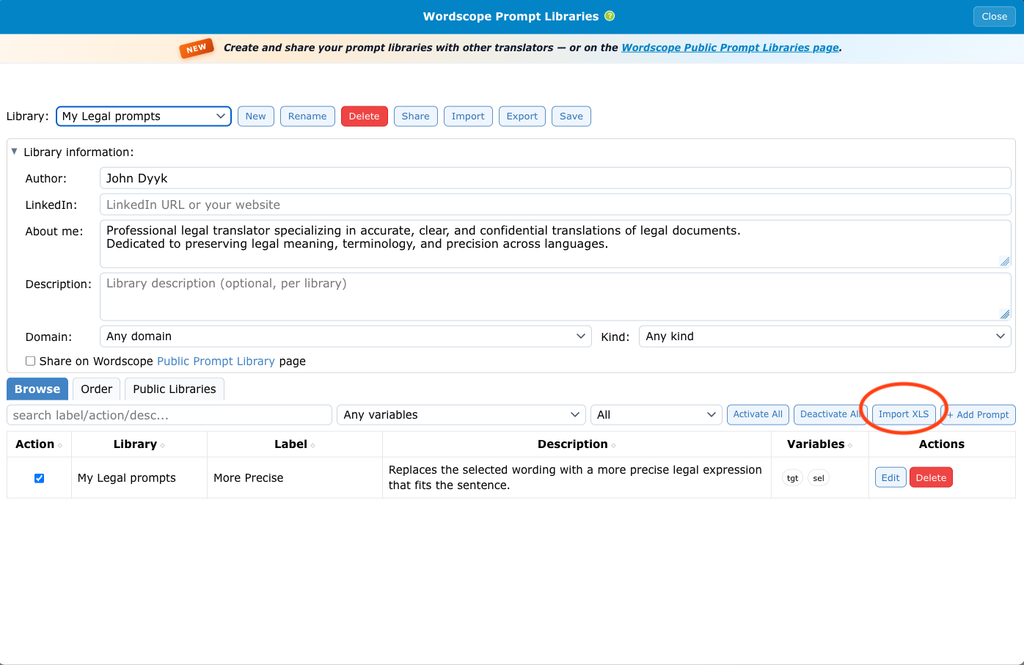
7️⃣ Choose your Excel file.
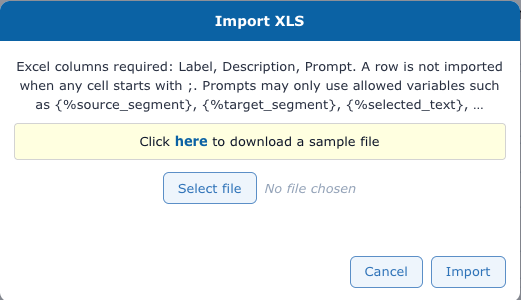
8️⃣ Download a sample file if you need a model:
Excel file format
The Excel file must follow a fixed format. If your prompt file is not compliant, please adapt it before you import. Otherwise Wordscope rejects the file or skips rows.
You can download a model file: wordscope_prompt_library_example.xlsx.
Required columns (exactly these three, in a header row):
| Column | What it is |
|---|---|
| Label | Short name of the prompt. This text appears on the action button. |
| Description | What the prompt does (for you and for people who import your library). This is not the instruction sent to ChatGPT. |
| Prompt | The full instruction for ChatGPT. |
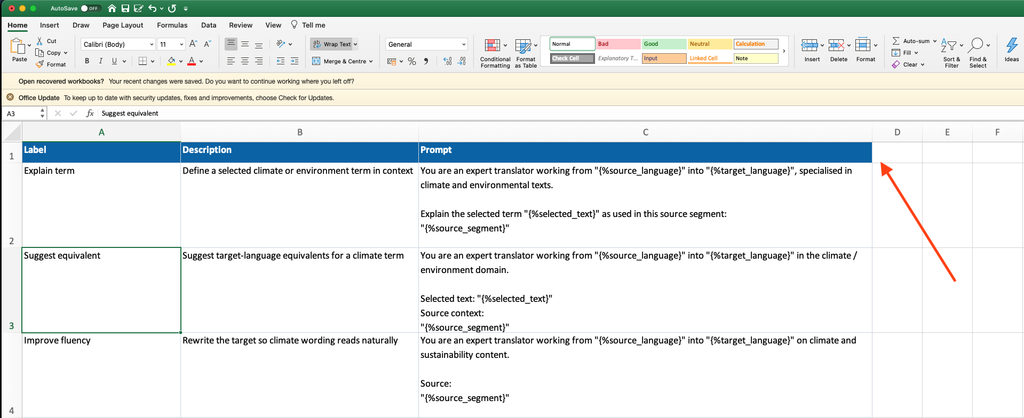
Other rules:
👉 Any row where a cell starts with ; is treated as a note and is ignored (useful for comments above the header or between prompts).
👉 Label and Prompt are required on each imported row. Empty rows are skipped.
👉 Prompts may contain Wordscope variables in this format: {%variable_name}.
Allowed variables:
| Variable | What Wordscope inserts |
|---|---|
| {%source_segment} | Current source segment |
| {%target_segment} | Current target segment |
| {%selected_text} | Text you selected in the editor |
| {%source_language} | Project source language |
| {%target_language} | Project target language |
| {%previous_source_segment} | Previous source segment |
| {%previous_target_segment} | Previous target segment |
| {%next_source_segment} | Next source segment |
| {%next_target_segment} | Next target segment |
If your Excel file uses variables in another format, do a global replace before import (for example replace %selection% with {%selected_text}, or {{source}} with {%source_segment}). Wordscope only accepts the {%…} names listed above.
If your Excel file has more than these three columns, delete the extra columns and save a new Excel file before you import. Keep only Label, Description and Prompt.
Wordscope is an all-in-one CAT tool, working seamlessly on both Mac and PC, that combines multiple machine translation engines, over a dozen specialized terminology tools, and the robust assistance of ChatGPT for Translators. It provides professional translators with advanced functionalities for translation, definition, rewriting, and much more.
Try now! Log in or sign up to receive a free trial subscription!
Visit pro.wordscope.comTrusted by thousands of professional translators in 40+ countries
Visit pro.wordscope.com to create a translation project.