
Delete a library
You can delete a library you own when you no longer need it. Deleting a library removes it from your account and hides any action buttons that came from that library.
You cannot delete the Default Library.
If you delete public libraries (Wordscope sample libraries or other public libraries), you can reimport them later from the Wordscope Public Prompt Libraries page if needed.
To delete a library:
1️⃣ Open a project.
2️⃣ Click the ChatGPT button.
3️⃣ Click the Libraries button.
4️⃣ Select the library you want to delete.
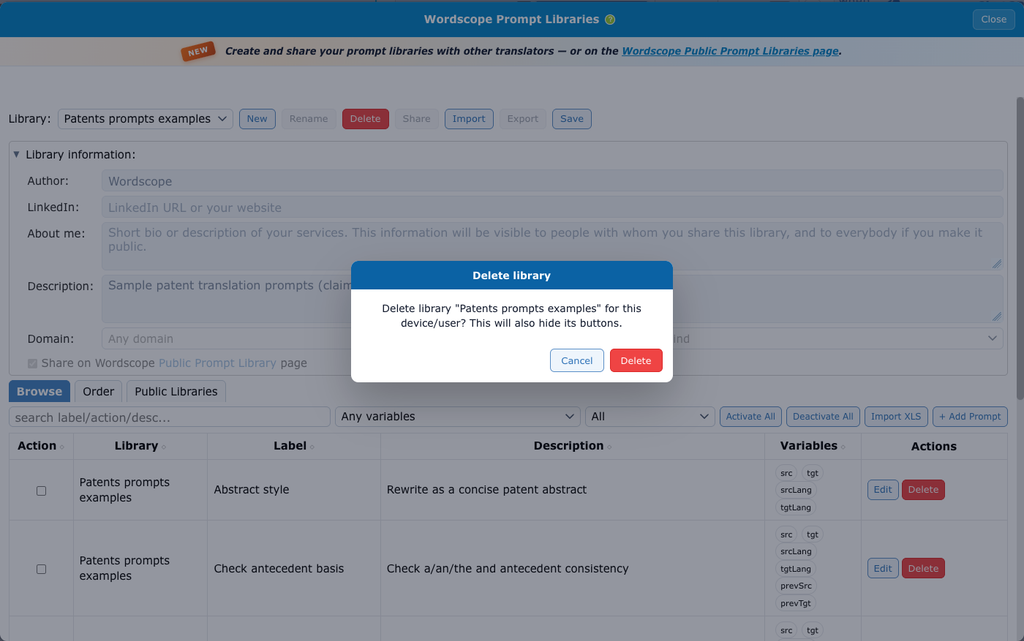
5️⃣ Click Delete on the Libraries toolbar (next to Rename).
6️⃣ Confirm in the dialog: click Delete.
7️⃣ Wordscope removes the library and hides its buttons from the ChatGPT bar.
If Delete does nothing or you see a message that you cannot delete a Wordscope library, you selected Default Library. Choose another library instead.
Wordscope asks you to keep at least one library. You cannot delete the last remaining library.
Before you delete a library you might still need, click Export to save a .wpl backup. See also Create a library.
Wordscope is an all-in-one CAT tool, working seamlessly on both Mac and PC, that combines multiple machine translation engines, over a dozen specialized terminology tools, and the robust assistance of ChatGPT for Translators. It provides professional translators with advanced functionalities for translation, definition, rewriting, and much more.
Try now! Log in or sign up to receive a free trial subscription!
Visit pro.wordscope.comTrusted by thousands of professional translators in 40+ countries
Visit pro.wordscope.com to create a translation project.