
Assign a prompt to a Button
Creating a library and adding prompts does not put those prompts on the ChatGPT bar by itself. The same is true after you import a public library: the prompts are in your account, but they only become action buttons when you select them.
You assign a prompt to an action button by ticking Action on that row in the Browse tab, then clicking Save.
Assign a prompt to a button
Here is how to assign a prompt to an action button in the ChatGPT bar. Let’s say we have the following configuration to start with, and we want to add two prompts from the Wordscope Example Legal Prompts library (Check modality and Expand abbreviation):
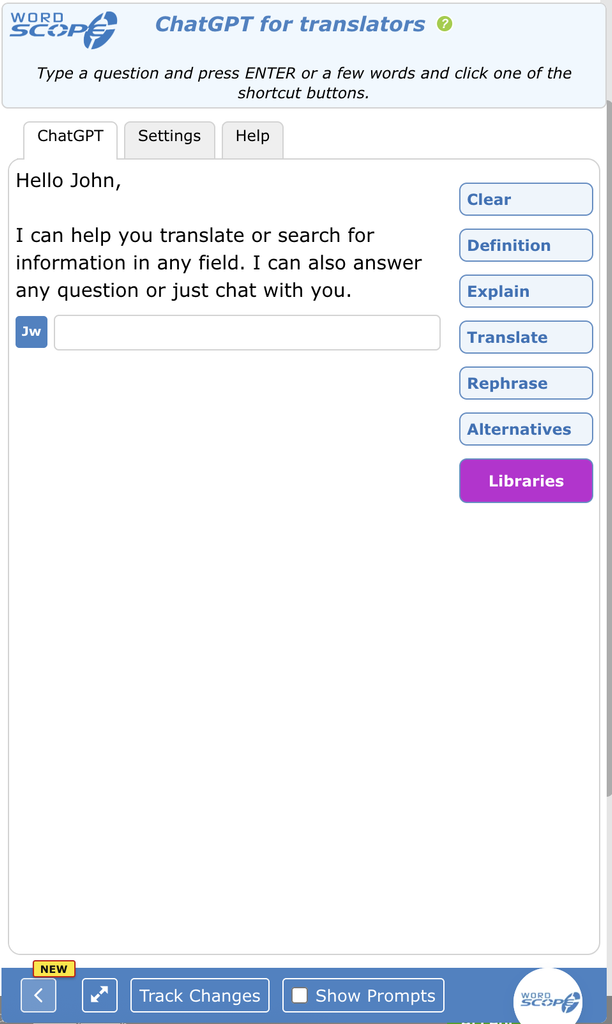
1️⃣ Open a project.
2️⃣ Click the ChatGPT button.
3️⃣ Click the Libraries button.
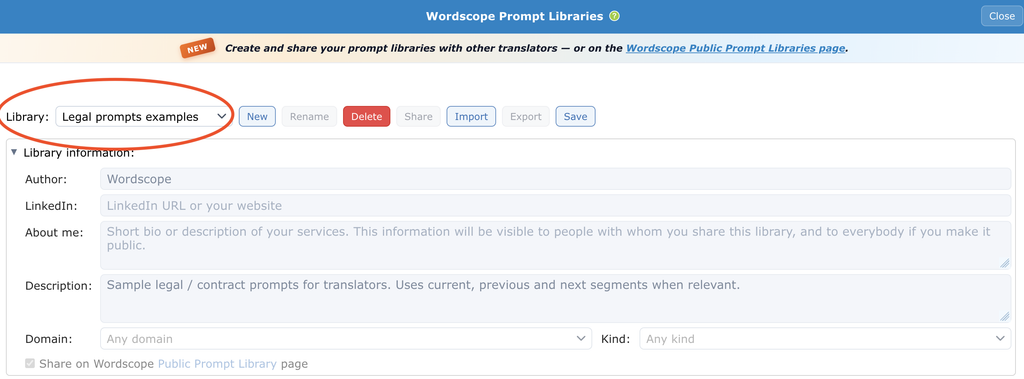
4️⃣ Open the Libraries picklist
5️⃣ Select the library that holds the prompt (one you created, or one you imported).
6️⃣ Find the prompt in the list.
7️⃣ Select the two prompts we need by ticking their checkboxes in the Action column.
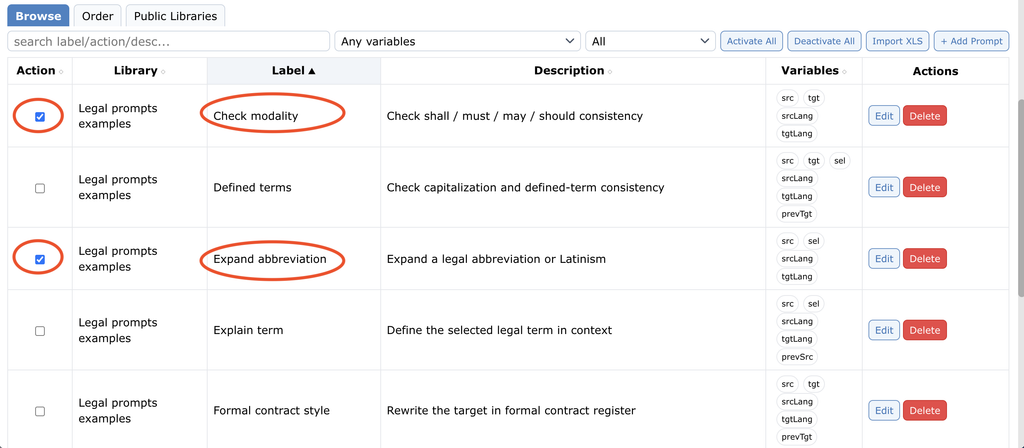
8️⃣ Click Save.
Always click Save after you tick or untick a checkbox in the Action column. Otherwise, the buttons on the ChatGPT bar will not match what you see in the list.
To remove a button later, untick the checkbox for that prompt, then click Save again.
Keep prompt labels as short as possible. Long labels may wrap onto several lines and take up too much space in the ChatGPT window.
Limit the number of active prompts. If too many prompts are enabled, the Library button at the bottom of the list may no longer be visible without scrolling. Activate only the prompts you use most often.
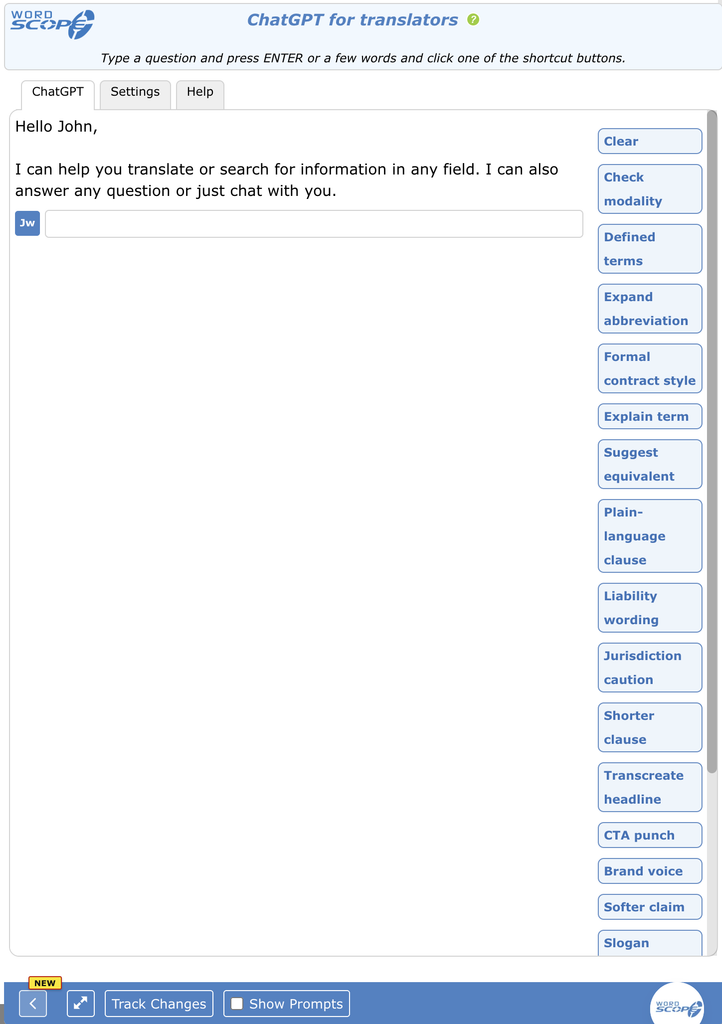
Avoid long labels or activating too many prompts
Activate all prompts in one library
Activate All and Deactivate All on the Browse toolbar apply to the prompts currently listed.
That list depends on what you pick in Library:. If you select one library, only that library is affected. If you select All libraries, every prompt shown across all libraries is affected.
Activating every prompt in a full pack often puts too many buttons on the ChatGPT window. Prefer activating only the few prompts you will use on this job. Use Activate All when the library is small, or when you truly want the whole pack as buttons.
To turn every prompt in one library into buttons:
1️⃣ Open a project.
2️⃣ Click the ChatGPT button.
3️⃣ Click the Libraries button.
4️⃣ Open the Browse tab.
5️⃣ In the Library, select that one library (for example My Legal prompts).
6️⃣ Click Activate All.
7️⃣ Click Save.
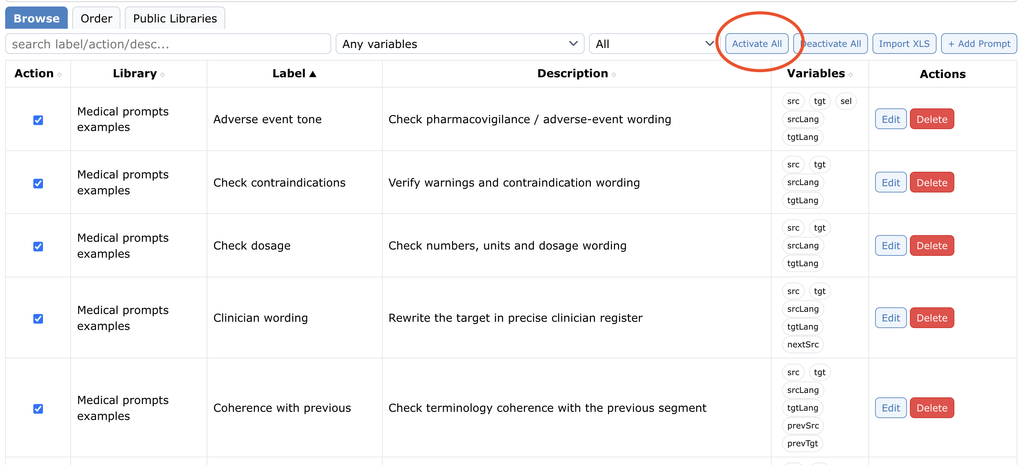
Each prompt in this library is assigned to its own button.
Clear all buttons in one library
Use this when you want to remove every action button that comes from one library, without touching buttons from your other libraries.
To clear all buttons from one library only:
1️⃣ Open a project.
2️⃣ Click the ChatGPT button.
3️⃣ Click the Libraries button.
4️⃣ Open the Browse tab.
5️⃣ Select the library in the Library pick.
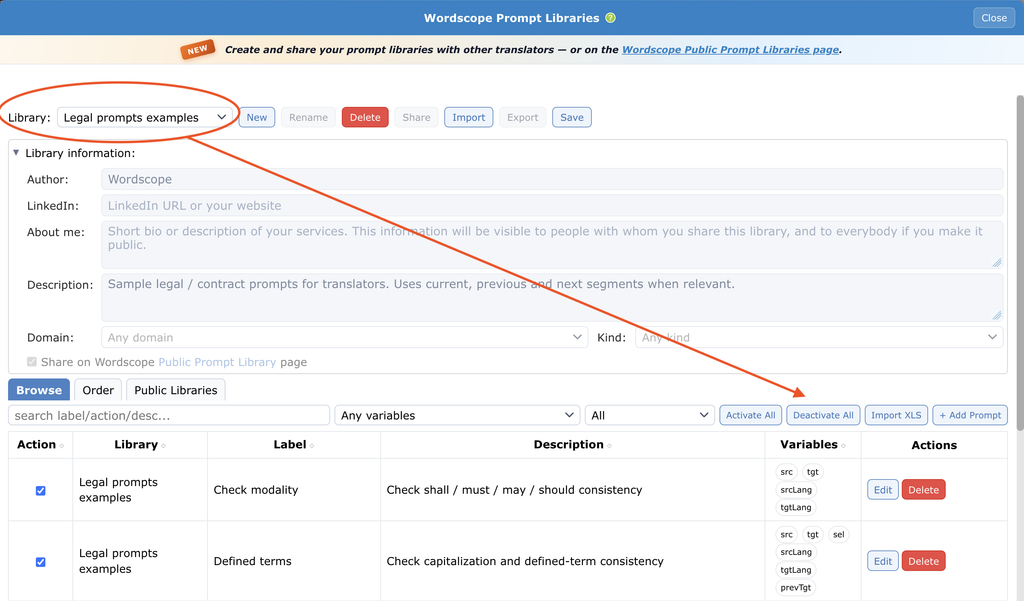
Only the buttons associated with this library’s prompts will be removed from the ChatGPT window
6️⃣ Click Deactivate All.
7️⃣ Click Save.
Clear all buttons from every library
When the Library is set to All libraries, Deactivate All clears Action on every prompt currently listed. That is the quick way to empty the ChatGPT bar of custom prompt buttons and start again.
To clear all activated buttons across libraries:
1️⃣ Open a project.
2️⃣ Click the ChatGPT button.
3️⃣ Click the Libraries button.
4️⃣ Open the Browse tab.
5️⃣ In the Library picklist, select All libraries.
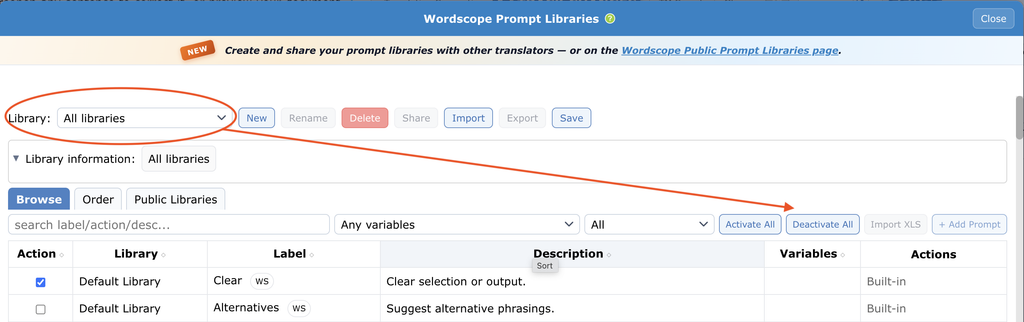
6️⃣ Click Deactivate All.
7️⃣ Click Save.
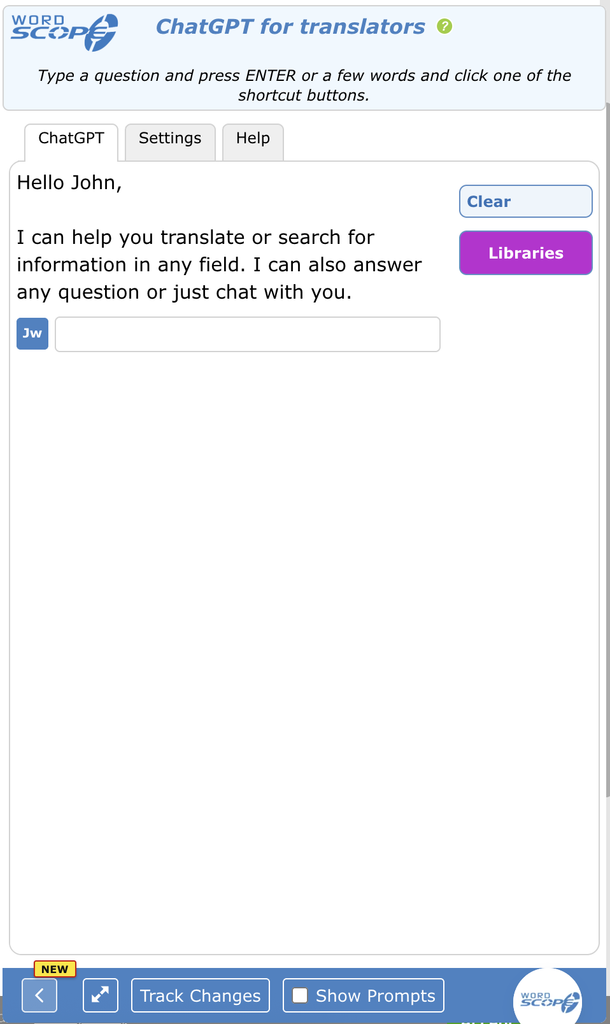
All prompts are removed from ChatGPT
Avoid Activate All while All libraries is selected. That can tick dozens of prompts at once and flood the ChatGPT window with buttons. Prefer one library at a time, or tick only the prompts you need.
Wordscope is an all-in-one CAT tool, working seamlessly on both Mac and PC, that combines multiple machine translation engines, over a dozen specialized terminology tools, and the robust assistance of ChatGPT for Translators. It provides professional translators with advanced functionalities for translation, definition, rewriting, and much more.
Try now! Log in or sign up to receive a free trial subscription!
Visit pro.wordscope.comTrusted by thousands of professional translators in 40+ countries
Visit pro.wordscope.com to create a translation project.