
Browse and filter
Once the catalogue is open (in Wordscope or on the web), take a moment to look around before you import. Searching, filtering, and opening View prompts helps you pick a pack that matches your job, instead of importing everything.
Explore the library cards
Each card in the catalogue is one public library. Look at the library name, author, domain, kind, and short description when those fields were filled in. That overview is enough to decide which packs are worth opening in more detail.
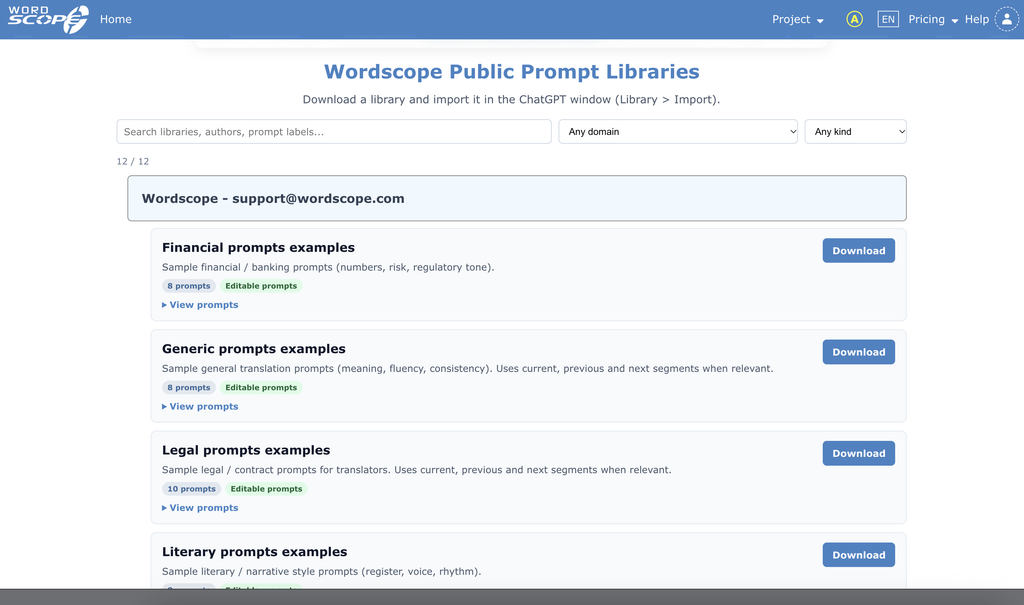
Move down the list to see more cards. New libraries appear as you go, so keep exploring until you find a domain close to your work (for example medical, legal, or marketing).
Browse and filter
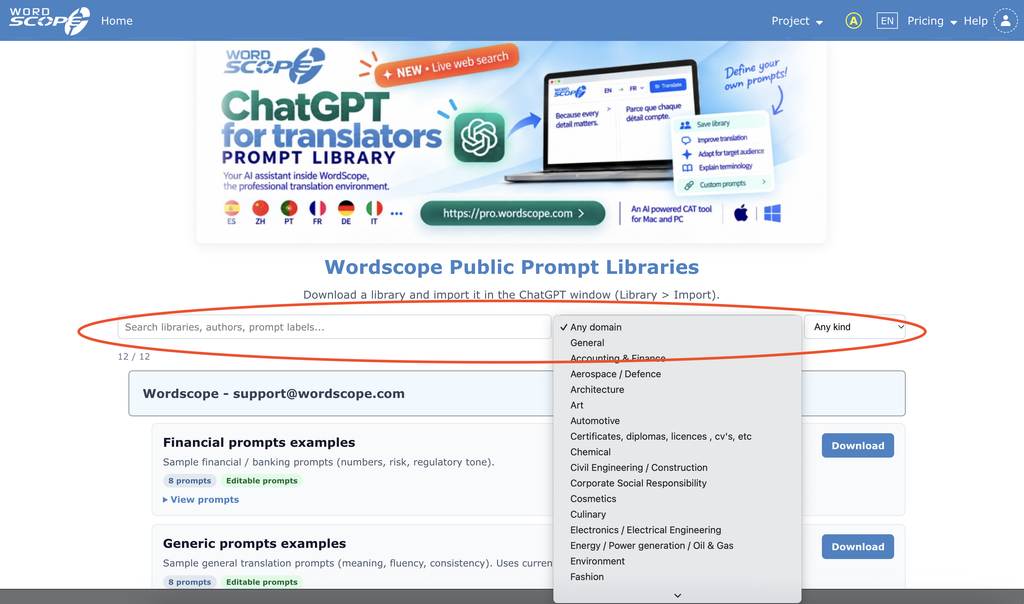
If the list is long, narrow it before you click into every card. Search works on library name, author, or prompt label. Domain and Kind match the fields authors set when they publish a library on the public page.
To narrow the list:
1️⃣ Use the search box (name, author, or prompt label).
2️⃣ Filter by Domain if you want (for example Legal or Medical).
3️⃣ Filter by Kind if you want (for example Terminology or Style).
View the list of prompts in each library
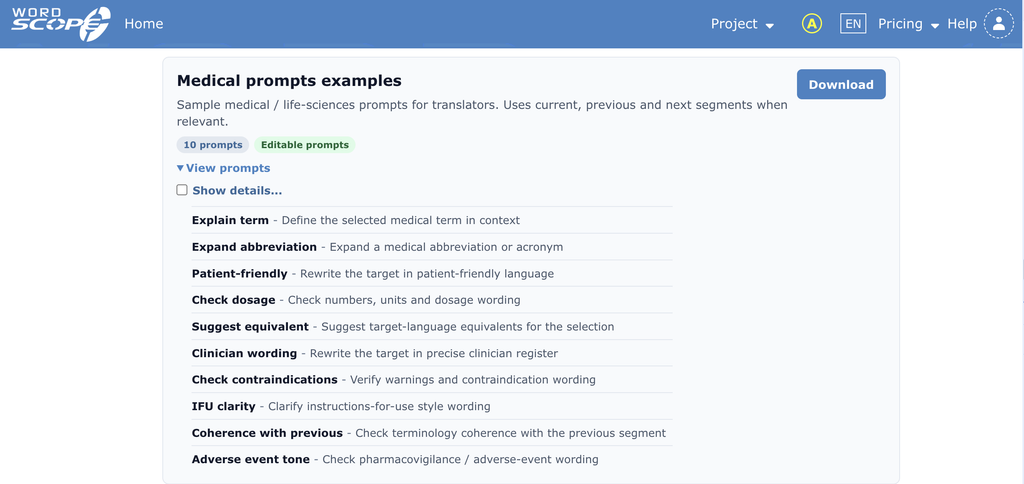
A library card alone does not always show every prompt. Open the prompt list when you want to check whether the pack contains the actions you need (for example Expand abbreviation or an EU Act check) before you import.
To see which prompts a library contains before you import it:
1️⃣ Find the library card you are interested in.
2️⃣ Click View prompts (open the prompts summary on that card).
3️⃣ Read the prompt labels in the list.
Show the full prompt text (Show details)
Labels alone are not always enough. If you want to read the full instruction Wordscope will send to ChatGPT (variables included), turn on Show details... before or after you open View prompts.
Example: you translate medical texts and you want to see the exact prompts in a Wordscope medical sample library before you import it.
To show the code of each prompt (example: Medical prompts):
1️⃣ Open the catalogue (Public Libraries tab, or Wordscope Public Prompt Libraries page).
2️⃣ Search for Medical (or filter Domain to Medical).
3️⃣ Find the medical sample library you want (for example a Wordscope Medical prompts pack).
4️⃣ Click View prompts.
5️⃣ Tick Show details....
6️⃣ Read the full prompt text under each label (for example Expand abbreviation or Patient-friendly).
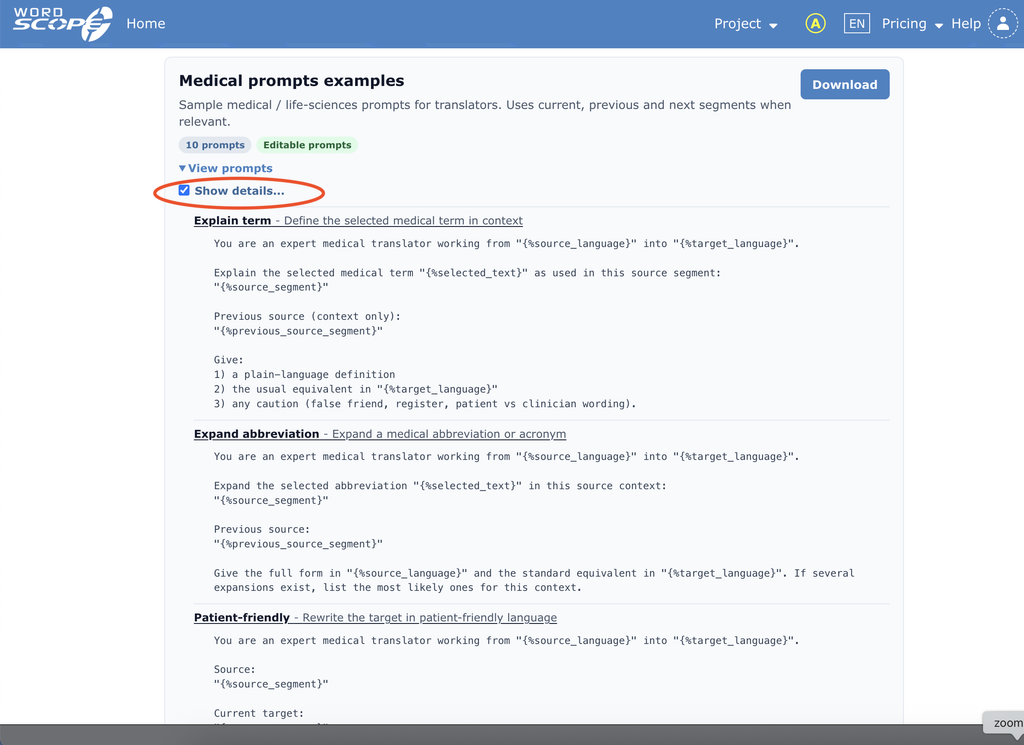
If the prompt text looks right for your job, continue with Importing a public library. You can still hide buttons later with Action.
When you have found a library that fits, continue with Importing a public library.
Wordscope is an all-in-one CAT tool, working seamlessly on both Mac and PC, that combines multiple machine translation engines, over a dozen specialized terminology tools, and the robust assistance of ChatGPT for Translators. It provides professional translators with advanced functionalities for translation, definition, rewriting, and much more.
Try now! Log in or sign up to receive a free trial subscription!
Visit pro.wordscope.comTrusted by thousands of professional translators in 40+ countries
Visit pro.wordscope.com to create a translation project.