
Project templates and clients
You can define different project templates per client. A template remembers which translation memories, machine translation engines, terminology resources, ChatGPT / Options settings, customizations, and related project flags you want to use for that client — so you do not reconfigure Settings for every new project.
You can create as many templates as you want for each client (for example one for EN→FR legal and another for EN→ES marketing).
Generic client: If you do not want to manage real client names, create a single generic client (for example “Generic” or “Default”) and attach different templates to it. Templates still require a client, but that client can be a catch-all.
Wordscope Team subscriptions: On Wordscope Team, clients and templates are shared for the whole team.
Different project managers can work for the same client — for example if a PM is on leave, a colleague picks the same Client and Template and continues with the same TMs and engines.
Before you save a template: create a client
Every template belongs to a client. Create the client first (or create it in the Save as Template dialog).
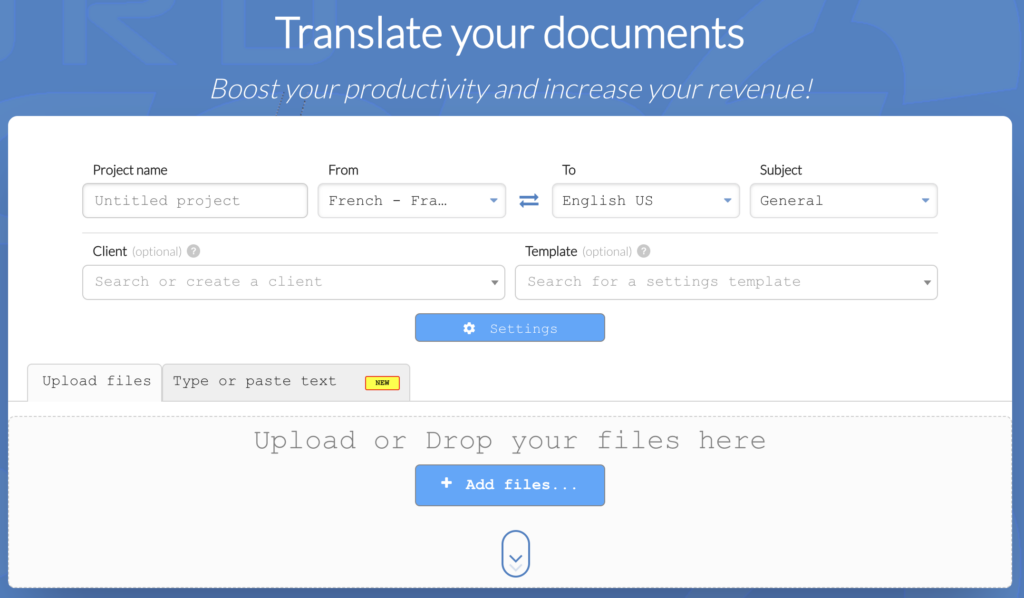
From the new project page
1️⃣ Open the new project page: go to https://pro.wordscope.com, or from another page open the Project menu → New Project.
2️⃣ Enter Project name, From / To languages, and Subject.
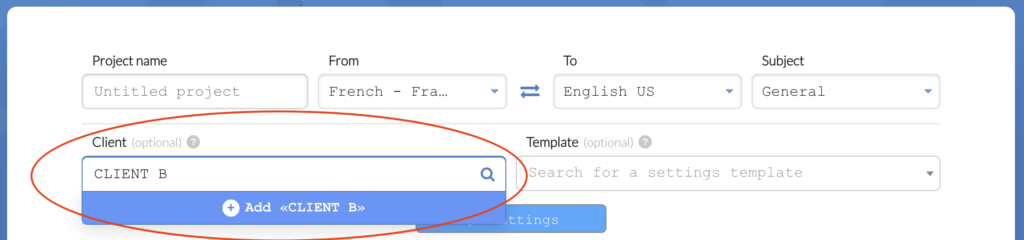
3️⃣ In Client, type to search, or type a new name and choose Add «…» to create the client.
From Settings
1️⃣ Open Settings.
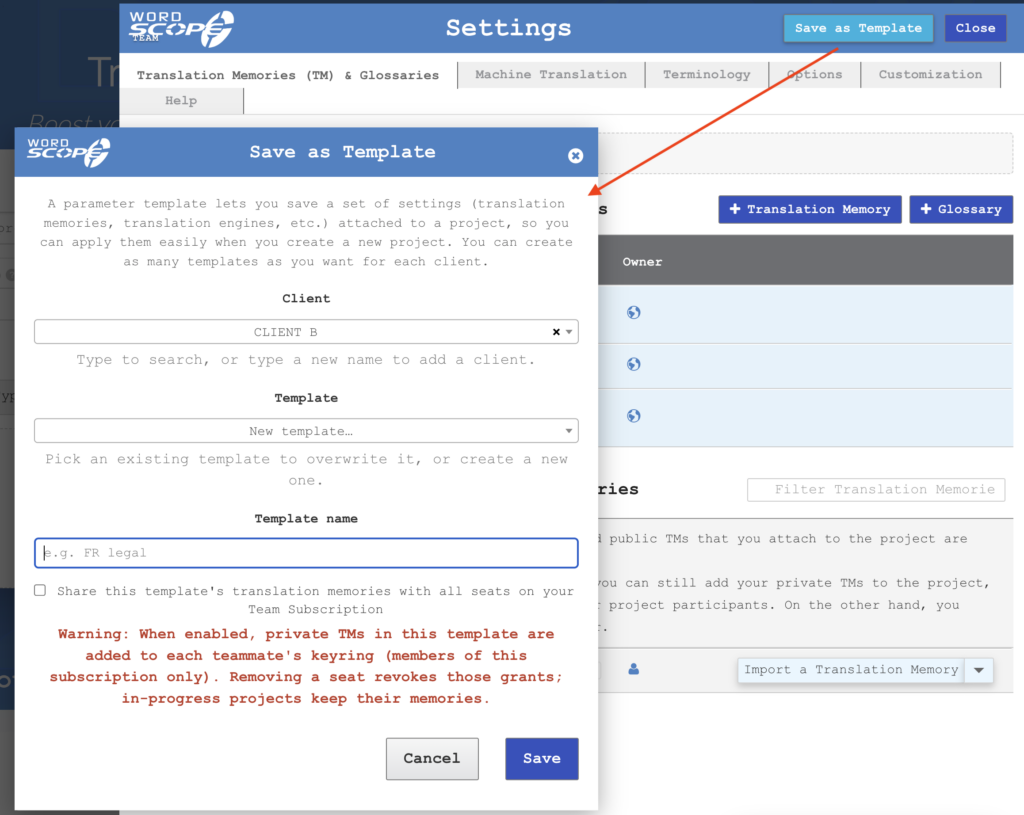
2️⃣ Click Save as Template.
3️⃣ In the dialog, use the Client field: search an existing client, or type a new name to add one.
Delete a client
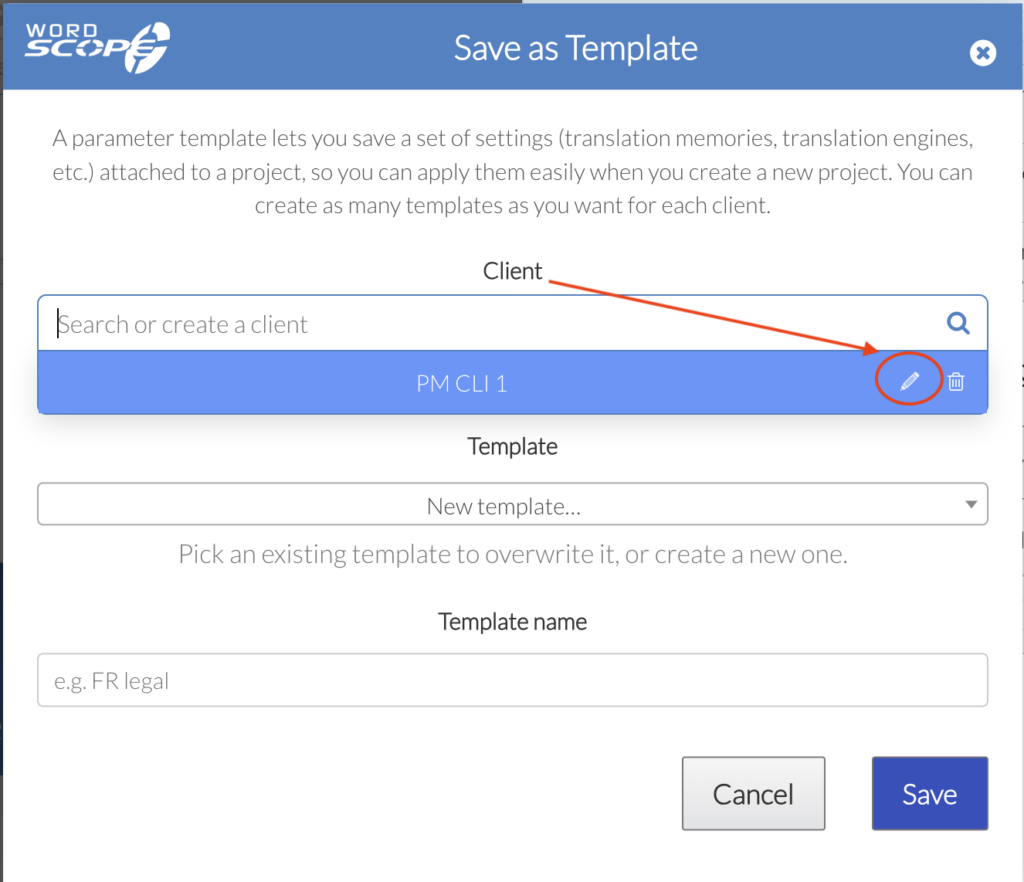
To delete a client, click the trash icon next to its name.
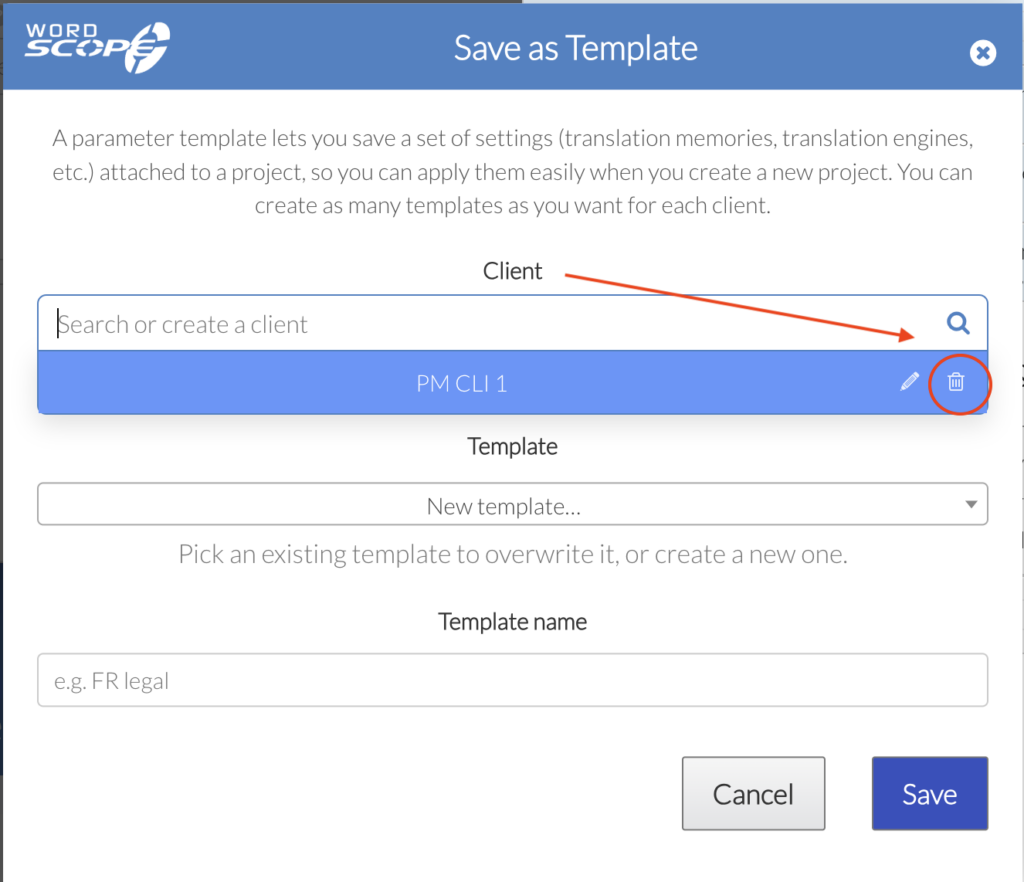
Deleting a client also deletes all templates attached to that client.
Changing a client name
To change a client’s name, click the pencil icon next to the client’s name.
Define a template (Settings)
1️⃣ Open Settings (from the new project page or inside a project).
2️⃣ Configure everything you want this template to remember, for example:
- Translation Memories (private / public, lookup and update)
- Machine Translation engines (which ones are on, and their order)
- Terminology resources
- ChatGPT and Options
- Customization Module
- Other project options (pre-translate 100%, segmentation, etc.)
On the new project page, also set languages and subject if you want them stored in the template.
3️⃣ Click Save as Template in the Settings header.
Save as Template popup — step by step
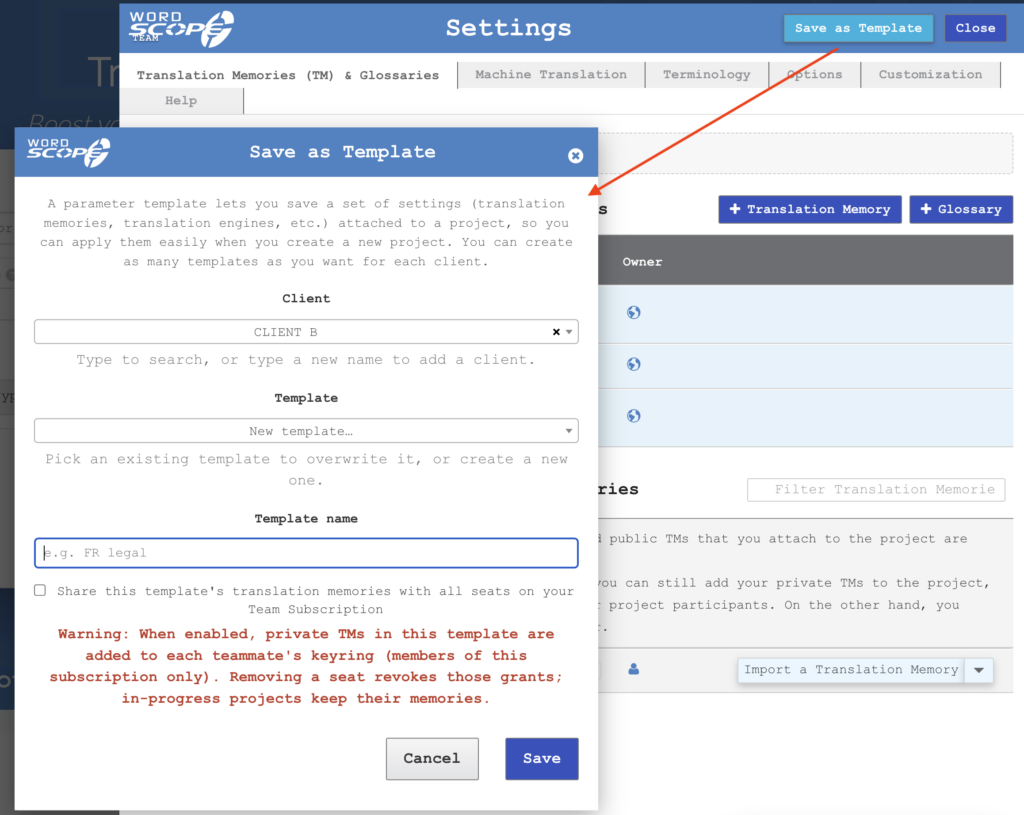
1️⃣ Client — search or create the client this template belongs to.
2️⃣ Template — choose New template…, or pick an existing template to overwrite it.
3️⃣ Template name — enter a clear name (for example “FR legal” or “EN→ES medical”).
4️⃣ (Team only, when shown) Optionally enable Share this template’s translation memories with all seats on your Team Subscription.
When enabled, private TMs in the template are added to each teammate’s keyring; removing a seat revokes those grants (in-progress projects keep their memories).
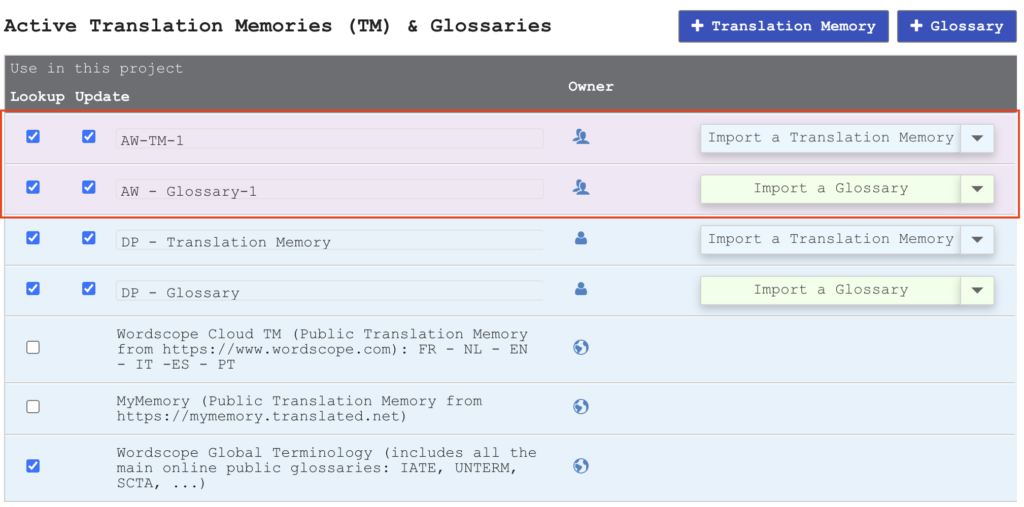
When a team member’s translation memories have been saved with a template and shared with the Team Subscription, those memories appear with a magenta background on other team members’ Settings pages (TM list).
5️⃣ Click Save.
Wordscope confirms Template saved or Template overwritten. On a Team plan, other PMs can use it immediately.
Apply a template on a new project
1️⃣ Open the new project page (pro.wordscope.com or Project → New Project).
2️⃣ Enter project name (and languages / subject if needed).
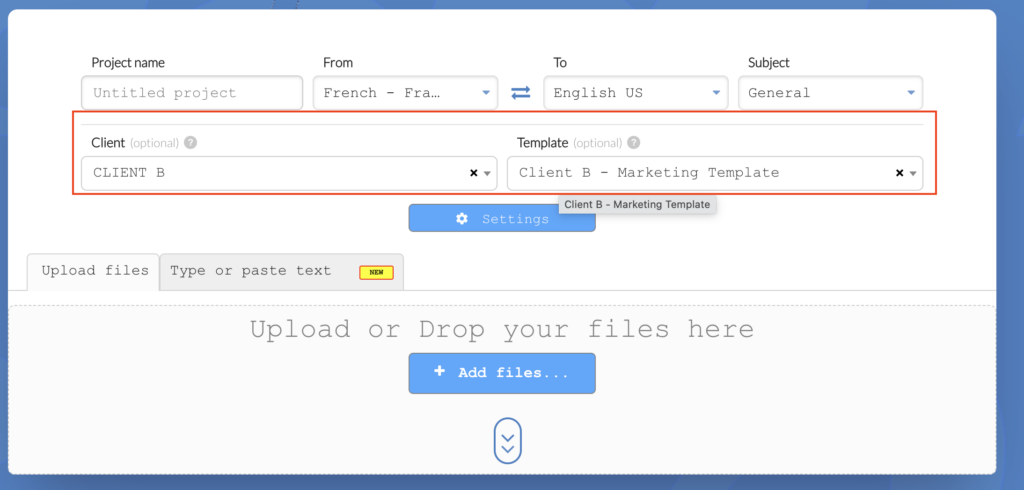
3️⃣ Select the Client.
4️⃣ Select the Template.
5️⃣ Wordscope applies the saved Settings (Template applied). Review if needed, then upload your file and create the project.
Applying a template overwrites the current project Settings. It does not merge with previous checkboxes.
Quick checklist
| Goal | Action |
|---|---|
| Create a client | New project page → Client, or Settings → Save as Template → Client |
| Save a template | Settings → configure → Save as Template → client + name → Save |
| Reuse setup | New project → Client → Template |
| No real clients | Create a generic client and attach several templates to it |
Wordscope is an all-in-one CAT tool, working seamlessly on both Mac and PC, that combines multiple machine translation engines, over a dozen specialized terminology tools, and the robust assistance of ChatGPT for Translators. It provides professional translators with advanced functionalities for translation, definition, rewriting, and much more.
Try now! Log in or sign up to receive a free trial subscription!
Visit pro.wordscope.comTrusted by thousands of professional translators in 40+ countries
Visit pro.wordscope.com to create a translation project.