
For professors
If you teach translation (or a related program), we invite you to apply to enroll your university in the free Wordscope Academic Program. Once your application has been approved:
- You will receive a confirmation email from Wordscope.
- You will be granted a free, unlimited Gold subscription for your own account (as program owner).
- You will be able to assign licences to your students yourself from the same subscription page—by email, within a few minutes.
Several professors, several classes
If different professors each manage a different student list (different courses, groups, or campuses), each professor is welcome to submit a separate application. Each approved application creates its own program space and roster; lists do not need to be merged into a single account unless your institution prefers to work that way.
Step 1 — Apply to enroll your university
Please complete the application as follows:
- Please open the subscription page:
https://campus.wordscope.com/subscriptions - Select the Universities tab.
- Complete the University & Academic Program form. You will typically be asked for:
- Your name and title (e.g. Associate Professor)
- Your LinkedIn profile URL (for academic verification)
- Your teaching area (e.g. Translation studies)
- Your university name
- Whether your university is part of EMT (European Master’s in Translation), if applicable
- The number of licences (seats) you would like for your students
- Your email address
- The declaration checkbox (authorization for Wordscope to mention institutional use where appropriate)
- When the form is complete, please click Send request.
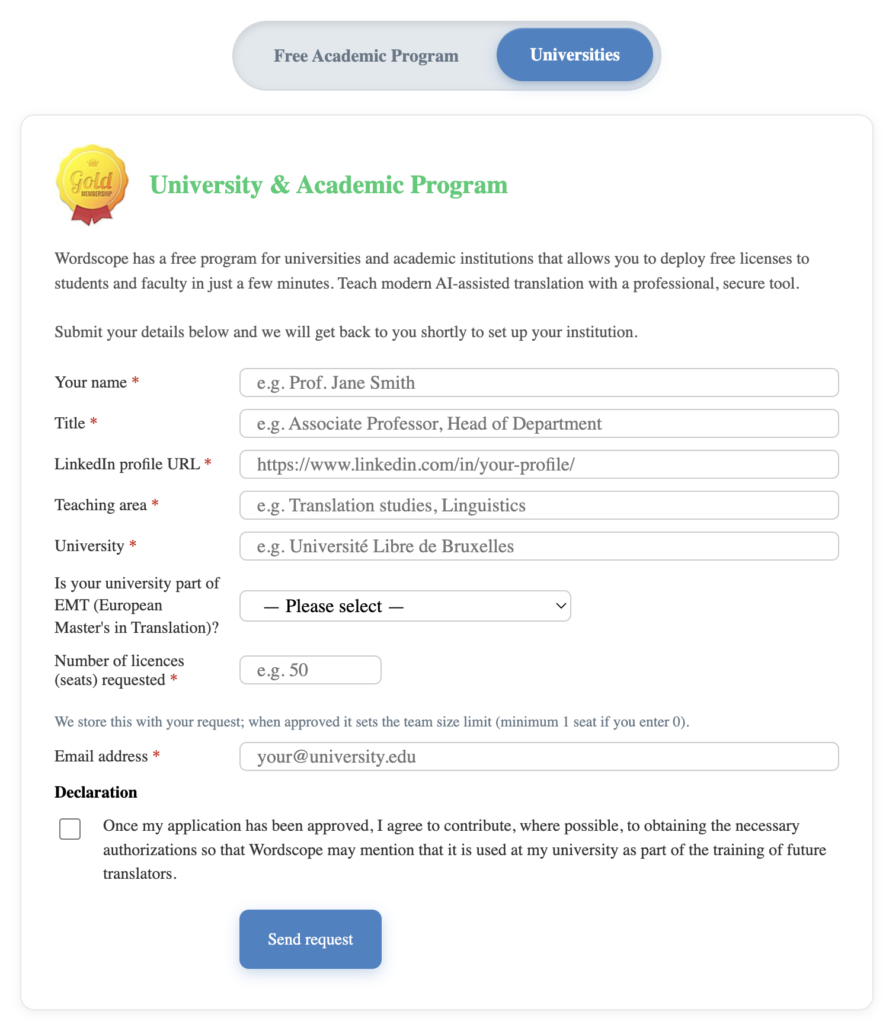
The Wordscope team will review your application for the Academic Program. Please allow a short time for processing; you will receive a confirmation email as soon as your application has been approved.
When more than one professor uses Wordscope and wishes to manage a separate list of students, each professor must complete the Academic Program application form individually.
Step 2 — Create your Wordscope Campus account
When your application has been approved, you will receive a confirmation email from Wordscope. This message confirms that your institution has been set up in the Academic Program and that you may begin managing student licences.
We recommend keeping this email for your records. If you have not received it within a reasonable time, please check your spam or junk folder, or contact Wordscope support.
You can now sign up on Wordscope using the same email address as on your application.
- Please open https://campus.wordscope.com.
- Please click Sign Up and register using your email address
- Confirm your account, then log in.
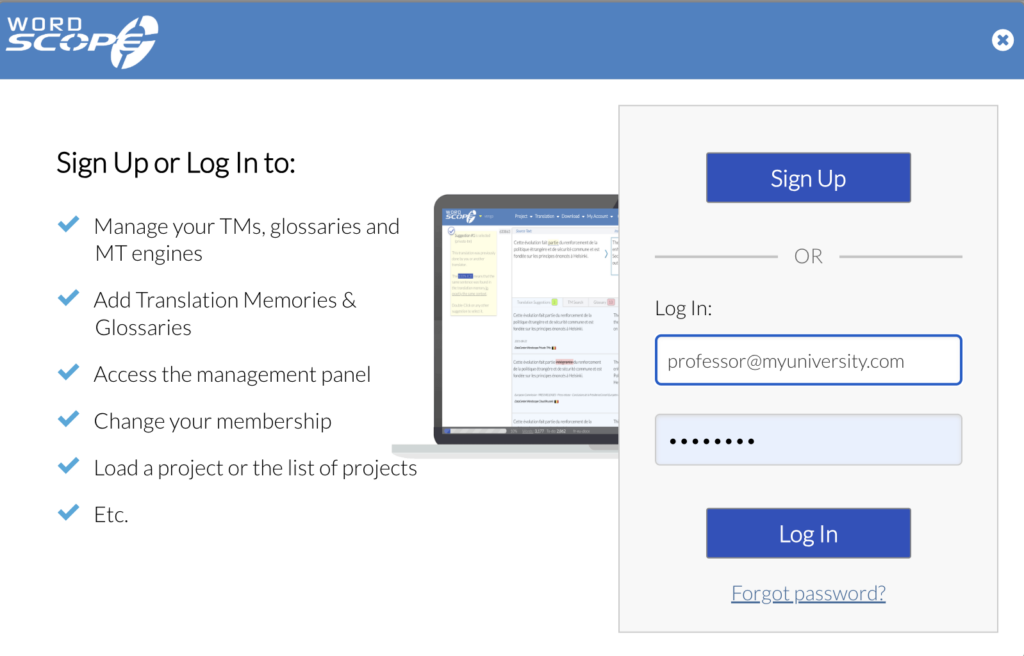
Note : If you registered before your Academic Program application was approved, your account will start as a Trial; it will automatically be upgraded to a free Gold account once your application has been approved.
Step 3 — Assign licences to students
To assign licences to your students, please log in to Wordscope Campus and visit:
https://campus.wordscope.com/subscriptions
The Subscriptions tab will now show team / roster management instead of the application form.
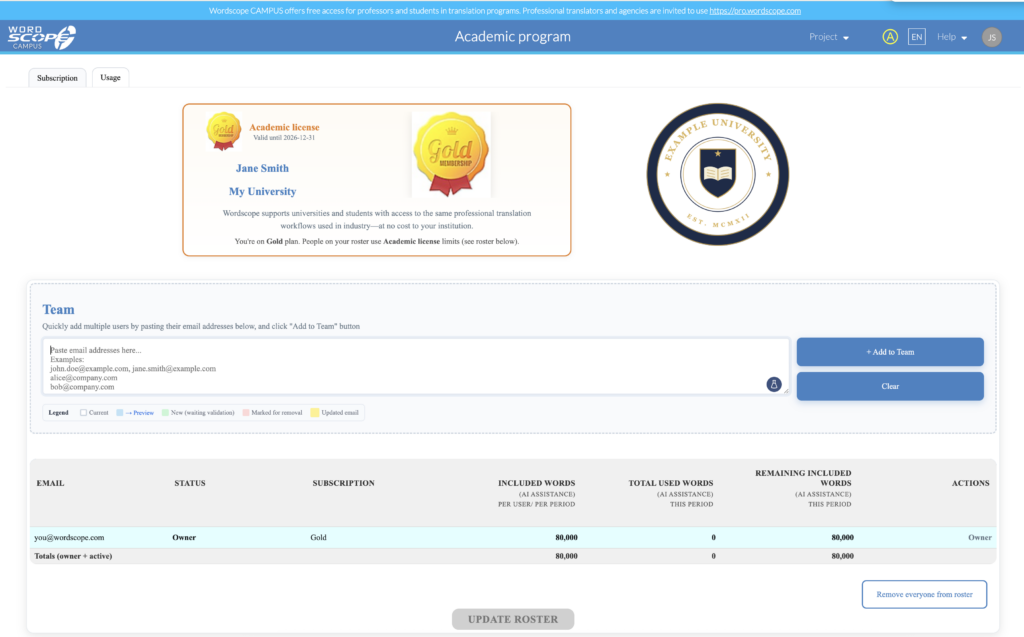
You may proceed as follows:
1️⃣ Please paste your students’ email addresses in the roster area (one per line, or separated by commas or semicolons).

2️⃣ Click + Add to Team to add them to the list.
3️⃣ Review the roster table (emails and status).
4️⃣ When you are satisfied, please Update roster to apply your changes.
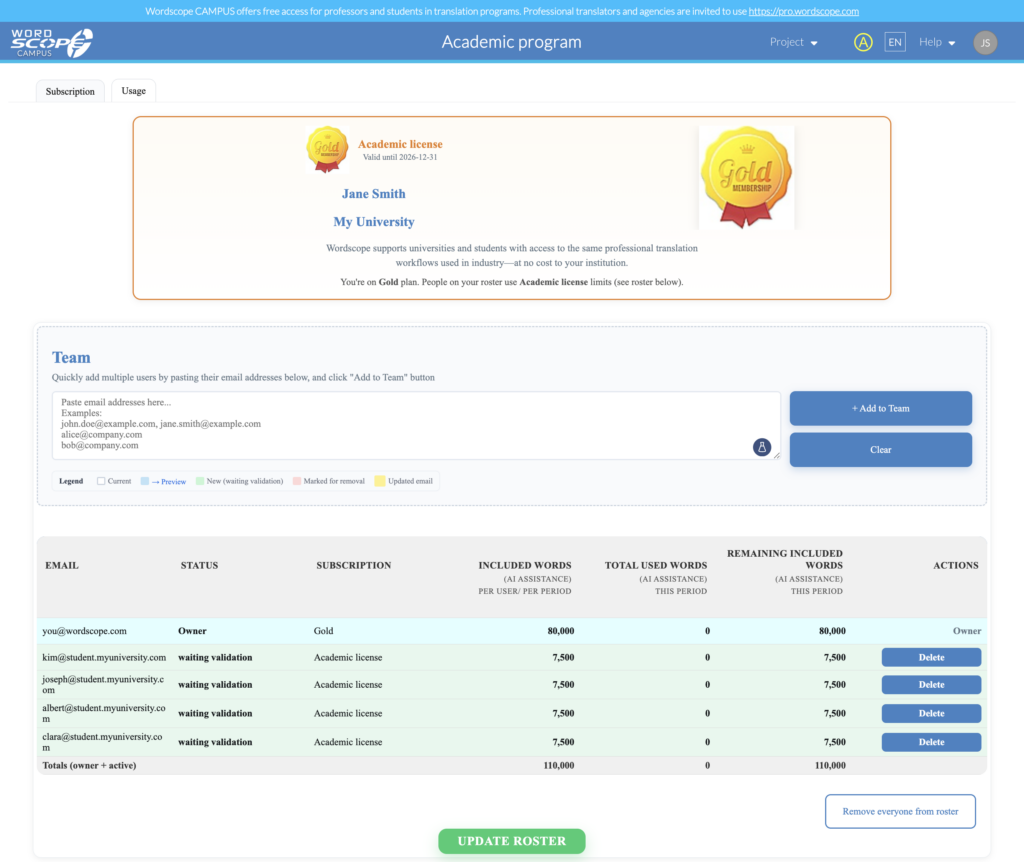
Invited students will receive instructions by email so they can sign up or log in on Campus. They will be able to start once they have activated their account.
If you receive a message that limits the number of students on your list, please contact academic@wordscope.com.

Usage tab
As the subscription owner, the Usage tab gives you:
1. Your personal usage
The same summary students see for themselves:
- current usage period;
- words used / included words / remaining;
- progress bar for AI assistance consumption.
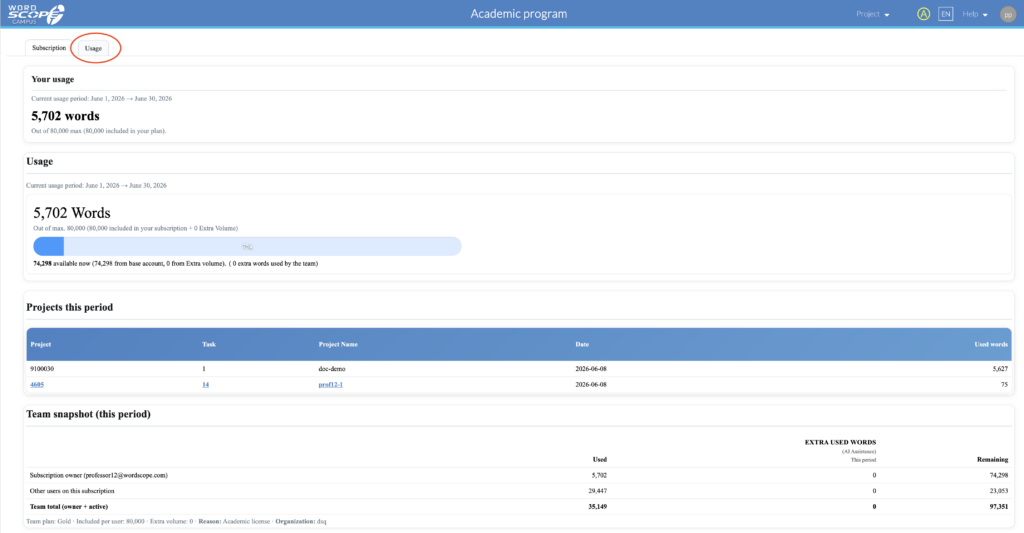
2. Team snapshot (this period)
If you have students on your roster, a Team snapshot table summarizes:
| Row | What it shows |
|---|---|
| Subscription owner (you) | Your own words used, extra used (if any), remaining. |
| Other users on this subscription | Combined usage of active students on your roster. |
| Team total | Overall consumption for the class licence this period. |
Use this for a quick class-wide picture without opening each student row.
3. Projects this period
Your own project-level breakdown (same table as for students), useful if you also translate or demo in the tool.
Per-student usage on the roster table
For day-to-day teaching, the roster table is the main place to monitor each student individually.
Open the Universities segment (or the subscription area where you manage your class list). The roster lists every invited student with columns such as:
| Column | Purpose |
|---|---|
| Student address on the roster. | |
| Status | e.g. active, waiting for validation, removed. |
| Subscription | Licence tier assigned to that seat (e.g. academic Silver/Gold). |
| Included words (AI Assistance) | Monthly word allowance for that seat. |
| Max words/month | Cap configured for your academic program (when shown). |
| Total used words (this period) | How many words that student has consumed this month. |
| Remaining included words | How much of their allowance is left. |
So you do not need to ask students to report usage manually: refresh the subscriptions page and read their numbers directly in the roster.
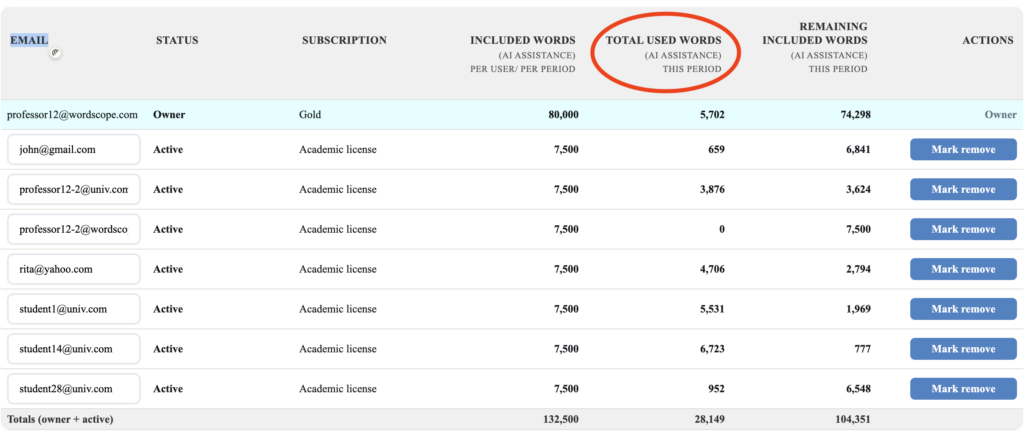
Roster table with word columns visible for several students
Typical workflow
- After assigning a large MT/AI exercise, check Total used words per student.
- Identify students near Remaining included words = 0 before a deadline.
- Use roster Status to confirm everyone is active (invitation accepted).
- Contact academic@wordscope.com if your institution needs more seats or a higher default monthly cap.
Usage tab vs roster — when to use which
| Need | Where to look |
|---|---|
| One student’s exact consumption | Roster → Total used words / Remaining for that row |
| Whole class total this month | Usage tab → Team snapshot |
| Your own usage as professor | Usage tab → personal summary |
| Which project used words (one user) | Usage tab → Projects this period (owner or student view) |
Roster colours (legend on screen):
| Colour / status | Meaning |
|---|---|
| Normal | Current active member |
| Green | Newly added (pending activation / waiting validation) |
| Red | Marked for removal |
| Yellow | Email updated but not yet saved |
You may add or remove students during the term by updating the roster and saving again.
.
Your subscription vs your students’ licences
| Professor (programme owner) | Students (roster seats) | |
|---|---|---|
| Plan | Gold — free, for teaching use | Education licence — same Gold-level features for coursework |
| Word volume | Unlimited (no monthly word cap on the owner account) | Limited to 7,500 words per month (default academic cap) |
| Other typical limits | — | Up to 2,500 words per project and 10 projects per month (defaults; your institution’s approval may specify slightly different caps) |
| Cost | Free under the Academic Program | Free while on your approved roster |
Your students will use the same translation interface and AI-assisted tools as you; the main difference is usage quotas, which are appropriate for classroom volume.
Tips for professors
- One application per professor is perfectly acceptable when each person manages their own class; please coordinate with colleagues only if you prefer a single shared roster.
- If a student has already started a 15-day Campus trial, adding them to your roster after approval will allow them to move onto the free Education licence automatically once the programme is active.
Wordscope is an all-in-one CAT tool, working seamlessly on both Mac and PC, that combines multiple machine translation engines, over a dozen specialized terminology tools, and the robust assistance of ChatGPT for Translators. It provides professional translators with advanced functionalities for translation, definition, rewriting, and much more.
Try now! Log in or sign up to receive a free trial subscription!
Visit pro.wordscope.comTrusted by thousands of professional translators in 40+ countries
Visit pro.wordscope.com to create a translation project.