
ChatGPT for Translators assistance
ChatGPT for Translators is Wordscope’s in-editor AI assistant. It is available on Bronze, Silver, and Gold. You do not need a separate ChatGPT subscription, you do not manage an API key, and you do not have to invent prompts from scratch: the assistance window gives you one-click shortcut buttons for the actions translators use most often.
You open the ChatGPT window from the editor (including via the green ChatGPT control on a segment).
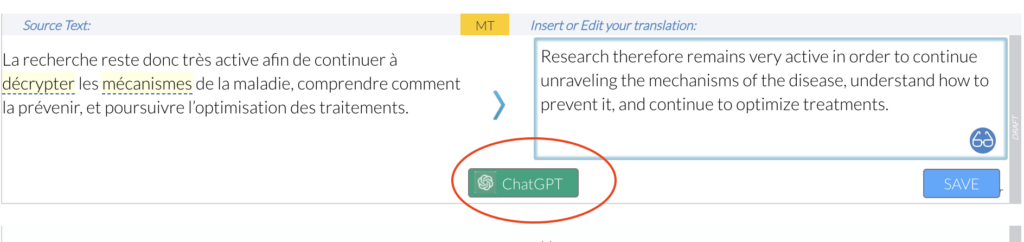
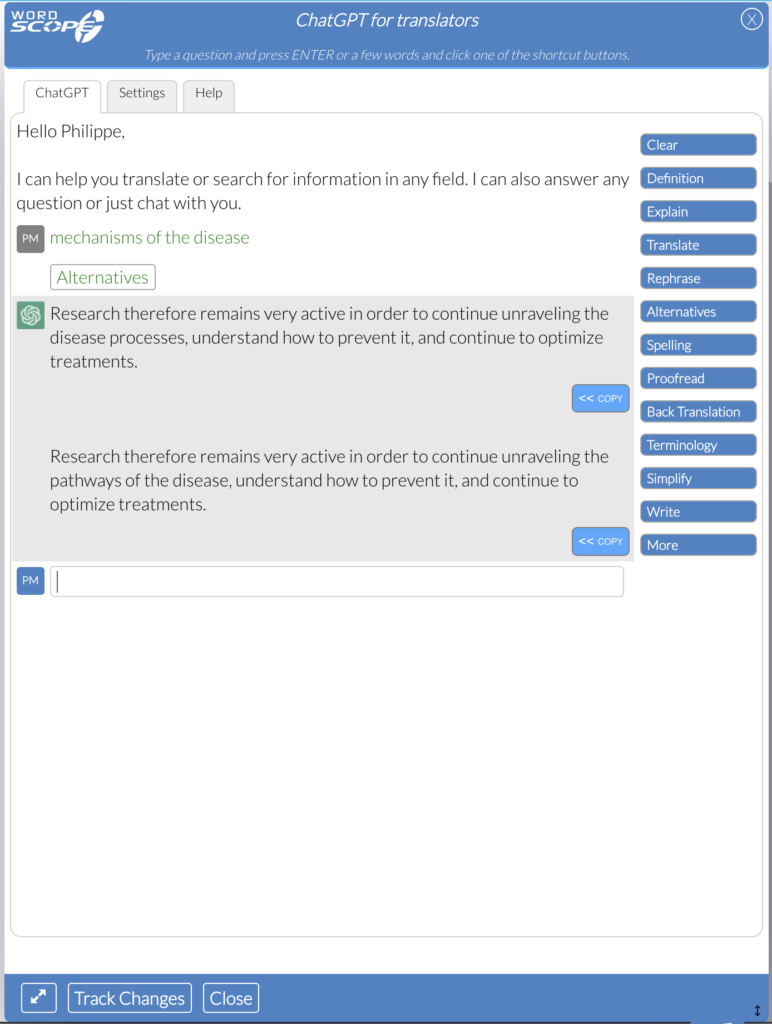
From there you can ask free-form questions, or click a shortcut button so Wordscope sends a ready-made request tuned for translation work. Answers appear in the same panel. When a suggestion is useful, you can copy it into the target segment.
Important: when a private glossary entry appears in the source segment, ChatGPT assistance respects that terminology. This applies to Proofread and to the other ChatGPT functions as well (for example Translate, Rephrase, Alternatives, Spelling, and Terminology). You set terms once per client; ChatGPT stays consistent with them instead of inventing competing wording.
Related pages:
- Automatic Proofreading with ChatGPT (Gold, Revision mode)
- Private glossaries with DeepL and ChatGPT
How to use the assistance window
The ChatGPT for Translators panel is a conversational workspace next to your segments. You can type a few words, a full sentence, or a question, then press Enter, or you can click a shortcut button so Wordscope applies the right action to the selected text or to the current segment.
Important — selection vs full sentence:
- If you select nothing, the function applies to the full sentence (for example, Translate translates the full sentence).
- If you select something, the function applies to what you have selected in the source or target segment.
Note: some functions, such as Alternatives or Explain, work better if you select a few words rather than the whole sentence.
1️⃣ Open a translation project in Wordscope.
2️⃣ Open the ChatGPT for Translators window from the editor.
3️⃣ Optionally configure Settings (Language, Domain, Audience, Style, Type of text, and Instructions) so answers match your client and subject. Details are at the end of this page.
4️⃣ Decide whether you need the full sentence or only a selection: leave nothing selected for the whole sentence, or select text in the source or target for a focused action.
5️⃣ Click a shortcut button, or type a question and press Enter.
6️⃣ For Translate, Rephrase, Proofread, and Alternatives, click the Track Changes button at the bottom of the ChatGPT window so you can see the differences between ChatGPT’s suggestions and your current translation.
7️⃣ Copy the best proposal into the target when you are satisfied.
Track Changes: After Translate, Rephrase, Proofread, or Alternatives, always turn on Track Changes at the bottom of the window. You then see exactly what ChatGPT changed compared with your current target, without rereading every word.
Clear when you change topic: ChatGPT is conversational. When you switch subject or start a different task, click Clear so the previous conversation does not influence the next answer.
Shortcut buttons
The following buttons appear in the ChatGPT for Translators actions area. Each one is a ready-made request. You do not need to type a long prompt. Whenever a private glossary entry is present in the source segment, these functions are designed to respect that entry.
Unless noted otherwise, remember the selection rule: nothing selected = full sentence; a selection in source or target = only that selection. Alternatives and Explain usually work best on a few selected words.
Clear
What it does: Clears the current conversation in the ChatGPT terminal so you start fresh.
When to use it: After you finish a topic, before you ask something unrelated, or when a previous answer is polluting the next request.
How to use it: Click Clear. The panel resets; then type a new question or click another shortcut.
Definition
What it does: Returns a definition of a term or expression, typically in the language you chose in Settings.
When to use it: When you need a concise meaning for a word or phrase before you decide how to translate it.
How to use it:
1️⃣ Select the term in the source or target (or type it in the ChatGPT window). A short selection works best.
2️⃣ If you select nothing and rely on the segment, the action applies to the full sentence context available to the function.
3️⃣ Click Definition.
4️⃣ Read the definition, then translate with that meaning in mind.
You can also right-click selected text in the editor and choose Definition from the context menu.
Explain
What it does: Explains a term or concept in more depth than Definition, and in the current context, using the segment so the explanation fits the passage you are translating.
When to use it: When the source uses specialised wording and a short definition is not enough to translate accurately.
Note: Explain works better if you select a few words rather than the whole sentence.
How to use it:
1️⃣ Select the difficult term or short phrase in the source or target (or type it).
2️⃣ Click Explain.
3️⃣ Use the explanation to choose the right rendering in the target language.
Explain is also available from the right-click context menu on selected text.
Translate
What it does: Asks ChatGPT for translation proposals into your project’s target language (often more than one proposal, with optional comments). It can use segment context and the previous sentence so the result fits the surrounding text. If private glossary entries appear in the source segment, Translate respects those terms.
Selection: if you select nothing, Translate translates the full sentence. If you select text in the source or target, Translate applies to that selection only.
When to use it: When you want AI translation suggestions for a sentence or phrase inside the ChatGPT window, then refine them yourself.
How to use it:
1️⃣ Focus the segment, or select only the part you want translated in the source or target.
2️⃣ Click Translate.
3️⃣ Click the Track Changes button at the bottom of the ChatGPT window to see the differences between ChatGPT’s suggestions and your current translation.
4️⃣ Copy the best option into the target.
Rephrase
What it does: Produces alternative phrasings of your target text (typically two proposals) without adding new meaning. Private glossary entries found in the source remain respected. Use Track Changes to see what changed compared with your current translation.
Selection: nothing selected = full sentence; a selection in source or target = only that selection.
When to use it: When the translation is correct but stiff, repetitive, or not natural enough, and you want better wording while keeping the same meaning.
How to use it:
1️⃣ Leave nothing selected to rephrase the full sentence, or select the part of the target (or source) you want to rework.
2️⃣ Click Rephrase.
3️⃣ Click Track Changes at the bottom of the window to highlight differences with your current translation.
4️⃣ Copy the proposal that fits best.
Alternatives
What it does: Alternatives is a very powerful function. Replacing one or more words inside a finished sentence is often difficult: if you regenerate the whole segment, you risk losing wording you already liked. Alternatives does exactly what translators need: it keeps your translation and changes only what you have selected.
You select a word or phrase in the target; ChatGPT proposes alternatives for that fragment and returns full sentences where the rest of your wording stays in place. Private glossary entries found in the source continue to be respected. Use Track Changes at the bottom of the window to see clearly what changed versus your current translation.
Note: Alternatives works better if you select a few words rather than the whole sentence. That is the point of the function: a focused change inside an otherwise good translation.
When to use it: When most of the segment is already good and only one word or short phrase feels wrong.
How to use it:
1️⃣ In the target text, select only the words you want to change.
2️⃣ Click Alternatives (or use the right-click menu item Alternatives).
3️⃣ Click Track Changes at the bottom of the ChatGPT window to compare suggestions with your current translation.
4️⃣ Pick the best proposal and apply it.
Why Alternatives matters: It is not always easy to replace one or more words in a sentence without rewriting everything. Alternatives keeps your translation and changes only your selection — that is what makes it so powerful for fine-tuning. Select a few words for best results.
Selection required: Alternatives needs a selection in the target. If nothing is selected, Wordscope asks you to select the words you wish to rephrase.
Spelling
What it does: Fixes grammar and spelling in the target sentence and returns a corrected sentence plus comments that explain errors and rules. Private glossary entries found in the source are respected.
Selection: nothing selected = full sentence; a selection = only the selected text in source or target.
When to use it: When you want a linguistic clean-up of the target without a full fidelity check against the source.
How to use it:
1️⃣ Open the segment whose target you want to correct (optionally select part of it).
2️⃣ Click Spelling.
3️⃣ Read the corrected sentence and the comments, then copy what you accept.
Proofread
What it does: Proofread is the full quality check for the current segment. It checks:
- Spelling
- Grammar
- Whether the translation is faithful to the source (nothing important added or omitted)
- Whether private glossary entries found in the source segment are respected in the target (wrong glossary translations can be flagged and the correct term suggested)
It can return a corrected translation and a list of corrections with explanations. Like Translate, Rephrase, and Alternatives, you should click Track Changes at the bottom of the ChatGPT window to see the differences between ChatGPT’s suggestions and your current translation.
Selection: nothing selected = full sentence; a selection in source or target = the function focuses on that selection within the proofreading workflow.
When to use it: When you want a serious quality pass on the segment before you move on, not only a surface spelling fix.
How to use it:
1️⃣ Complete a draft of the target segment.
2️⃣ Click Proofread (tooltip: check if your translation is faithful to the original).
3️⃣ Click Track Changes at the bottom of the window to highlight what changed versus your current translation.
4️⃣ Review spelling, grammar, fidelity, and glossary comments, then update the target.
Automatic Proofreading (Gold): In Revision mode, Gold users can run ChatGPT proofreading automatically as they approve segments. See Automatic Proofreading with ChatGPT. On lower plans you can still use this Proofread button manually from the ChatGPT window.
Back Translation
What it does: Translates your target text back into the source language and comments on whether your translation was faithful, by comparing that back translation with the original source. Glossary-aware behaviour still applies when source glossary entries are involved in the check.
Selection: nothing selected = full sentence; a selection = only that part in source or target.
When to use it: When you want an independent meaning check: if the back translation diverges from the source, your forward translation may have drifted.
How to use it:
1️⃣ Ensure the segment has both source and target text.
2️⃣ Click Back Translation.
3️⃣ Read the back translation and comments, then fix the target if meaning was lost or added.
Terminology
What it does: Identifies the domain from the sentence when useful and lists bilingual glossary-style entries for that domain. It complements your private glossaries; entries already present in the source remain the reference for consistency.
Selection: nothing selected = full sentence context; a selection focuses terminology help on the selected words in source or target.
When to use it: When you are entering a specialised text and want a quick term list, or when you are enriching a client glossary.
How to use it:
1️⃣ Open a representative segment (and set Domain in Settings if you already know it).
2️⃣ Click Terminology.
3️⃣ Reuse useful pairs in your translation or save them to a private glossary.
Simplify
What it does: Rewrites the target in a simpler form for non-specialists, while still respecting private glossary entries found in the source when those terms must stay.
Selection: nothing selected = full sentence; a selection = only the selected text.
When to use it: When the audience needs plain language and the current draft is too dense.
How to use it:
1️⃣ Draft the specialised target sentence (or select the part to simplify).
2️⃣ Click Simplify.
3️⃣ Choose a clearer proposal and confirm required glossary terms are still correct.
Write
What it does: Turns keywords or a short outline into a full text in the target language.
When to use it: When you know the key terms to include but need help forming a natural complete sentence.
How to use it:
1️⃣ Type or paste keywords, or select a short outline in the segment.
2️⃣ Click Write.
3️⃣ Refine the generated sentence in the target segment.
More
What it does: Continues or expands the current text based on what is already in the conversation or segment context.
When to use it: When a draft is too short and you need additional wording in the same vein.
How to use it:
1️⃣ Have some text already in context.
2️⃣ Click More.
3️⃣ Edit the continuation so it still matches the source meaning, glossary terms, and client style.
Free chat (type and press Enter)
Besides shortcut buttons, you can type any question and press Enter. The Language setting controls the language of the reply. Use Clear when you change subject so the conversation stays focused.
Limits of the model: ChatGPT is not a live news or weather service. Questions that need real-time data may return wrong or outdated answers. Always verify critical facts and terminology against reliable sources and your private glossaries.
Context menu shortcuts
From selected text in the editor, the right-click menu can launch:
- Definition
- Explain (works better on a few selected words; explains in the current context)
- Alternatives (target selection; keeps your translation and changes only the selection; works better on a few words)
Quick reference
| Button | Main purpose | Selection | Track Changes |
|---|---|---|---|
| Clear | Reset the conversation | — | — |
| Definition | Short meaning of a term | Nothing = full sentence; selection = selected text | — |
| Explain | Longer explanation in the current context | Best with a few selected words | — |
| Translate | Translation proposals | Nothing = full sentence; selection = selected text only | Yes — bottom of window |
| Rephrase | Alternative phrasings, same meaning | Nothing = full sentence; selection = selected text | Yes — bottom of window |
| Alternatives | Keep your translation; change only the selection | Requires a few selected words in target | Yes — bottom of window |
| Spelling | Grammar and spelling fix | Nothing = full sentence; selection = selected text | — |
| Proofread | Spelling, grammar, fidelity, and glossary respect | Nothing = full sentence; selection = focus on selection | Yes — bottom of window |
| Back Translation | Meaning check via reverse translation | Nothing = full sentence; selection = selected text | — |
| Terminology | Domain glossary suggestions | Nothing = full sentence; selection = selected text | — |
| Simplify | Plain-language rewrite | Nothing = full sentence; selection = selected text | — |
| Write | Full sentence from keywords | Keywords / short selection | — |
| More | Continue / expand the text | Existing draft in context | — |
Tips for quality
1️⃣ Keep private glossary entries up to date. Proofread and the other ChatGPT functions respect entries found in the source segment.
2️⃣ Remember: nothing selected = full sentence; selection in source or target = only that selection. Alternatives and Explain work better on a few words.
3️⃣ After Translate, Rephrase, Proofread, or Alternatives, click Track Changes at the bottom of the ChatGPT window before you decide.
4️⃣ Use Alternatives when most of the sentence is already good: it keeps your translation and changes only what you selected.
5️⃣ Use Proofread when you need spelling, grammar, fidelity to the source, and glossary compliance in one pass.
6️⃣ Configure Settings (see below) before a long session.
7️⃣ Click Clear when you change topic.
Settings that shape every answer
Before you rely on the shortcut buttons for a long project, open the Settings tab of the ChatGPT window. These choices tell the assistant how to answer and how to adapt tone and terminology to your client.
Language
Choose the language ChatGPT should use when it speaks to you (definitions, explanations, comments). This is the language of the assistant’s replies, not necessarily the target language of the project. Set it to the language in which you prefer to receive help.
Domain
Indicate the field of the text you are translating (medical, legal, IT, marketing, and many other domains). Greater accuracy comes from naming the domain so terminology and explanations stay grounded in the right subject area.
Audience
Choose the intended reader of the text (for example Global, Medical Doctors, Engineer, Lawyer, Teacher, or age groups such as Kids or Teenagers). Audience steers register and how technical the wording should be.
Style
Choose the desired writing style: General, Formal, Casual, Academic, Creative, Technical, Journalistic, Literary, Marketing, Persuasive, Inclusive, and other options. Style affects how Translate, Rephrase, Write, Simplify, and similar actions sound.
Type of text
Specify whether the document is Technical, Scientific, Marketing, Administrative, Literary, Legal, Academic, Business, and so on. This helps ChatGPT treat the segment as the right kind of text rather than as a generic sentence.
Instructions
Add free-text special instructions for standing client preferences that are not covered by the menus alone. Use this for recurring rules such as preferred address forms, forbidden wording, or house style notes. Combined with private glossary entries found in the source, this is how you keep AI suggestions aligned with each client.
Gold and the suggestions panel: The special instructions you enter in Settings are also taken into account if you have a Gold subscription and use ChatGPT alongside other MT engines in the suggestions panel. One set of instructions can therefore guide both the ChatGPT assistance window and ChatGPT suggestions next to DeepL, Google Translate, Amazon Translate, and the other engines.
ChatGPT for Translators is included with your Wordscope subscription. Open a project at https://pro.wordscope.com and try the shortcut buttons on your next segment.
Wordscope is an all-in-one CAT tool, working seamlessly on both Mac and PC, that combines multiple machine translation engines, over a dozen specialized terminology tools, and the robust assistance of ChatGPT for Translators. It provides professional translators with advanced functionalities for translation, definition, rewriting, and much more.
Try now! Log in or sign up to receive a free trial subscription!
Visit pro.wordscope.comTrusted by thousands of professional translators in 40+ countries
Visit pro.wordscope.com to create a translation project.