
Importing a Translation Memory
Ce contenu n’est pas encore disponible dans votre langue.
Importing a Translation Memory (TM) allows you to reuse translations created outside Wordscope, saving time and ensuring consistency from the very start of your project. Wordscope supports the industry-standard TMX (Translation Memory eXchange) format, making it easy to transfer TMs between different CAT tools.
When do you need to import a Translation Memory?
There are two common situations:
👉 You work with another CAT tool and want to migrate to Wordscope without losing your existing content
Most CAT tools allow you to export your Translation Memory as a TMX file, which can then be imported into Wordscope.
👉 Your client provides their own Translation Memory
Clients often supply a TM to ensure terminology and style consistency across projects.
Import options in Wordscope
You can import a TMX file in two ways:
- Into an existing Translation Memory — to enrich it with additional segments
- Into a new Translation Memory — containing only the imported content
If you want to import into a new Translation Memory, create it first as described in the article: How to create a Translation Memory
How to import a TMX file
Once your Translation Memory exists in Wordscope, follow these steps to import a TMX file:
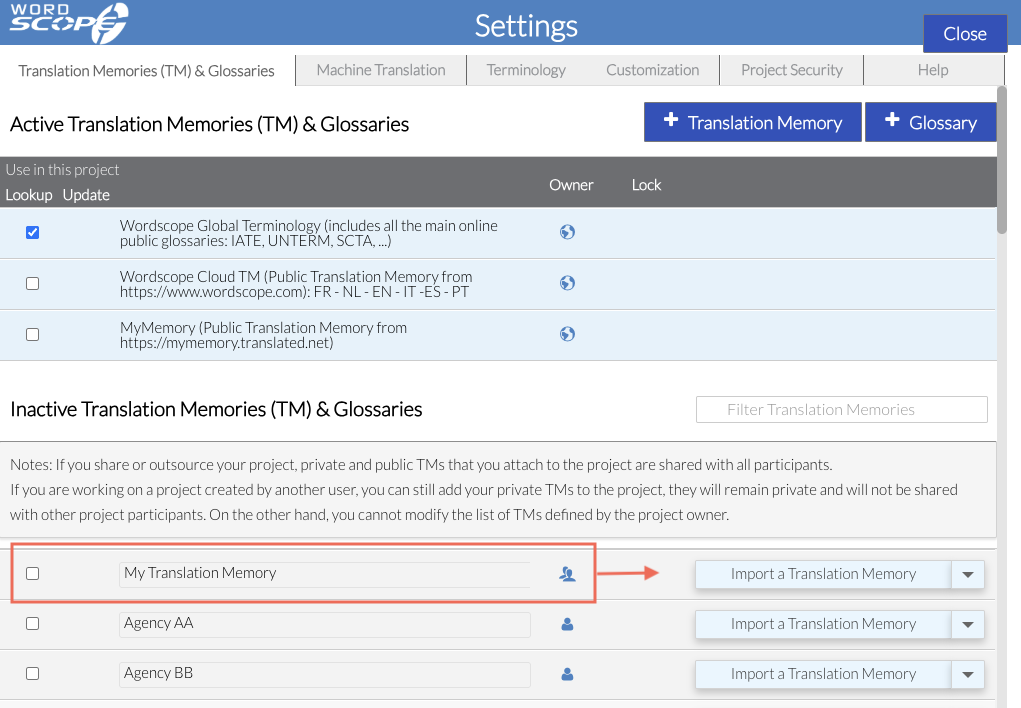
1️⃣ Open Settings and locate the Translation Memory into which you want to import the TMX file
2️⃣ Click the menu on the same line and select Import a Translation Memory
3️⃣ Click Select File and select the TMX file from your computer

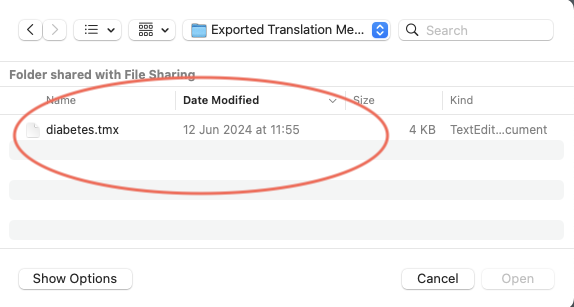
4️⃣ Click Confirm

Wordscope will process the file in the background. You will receive an email notification when the import is complete.
⚠️ Important
When using a Translation Memory in a project, always ensure that the project language pair matches the languages of your imported TMX file. If the languages do not match, no segments will be found and the Translation Memory will not provide suggestions.
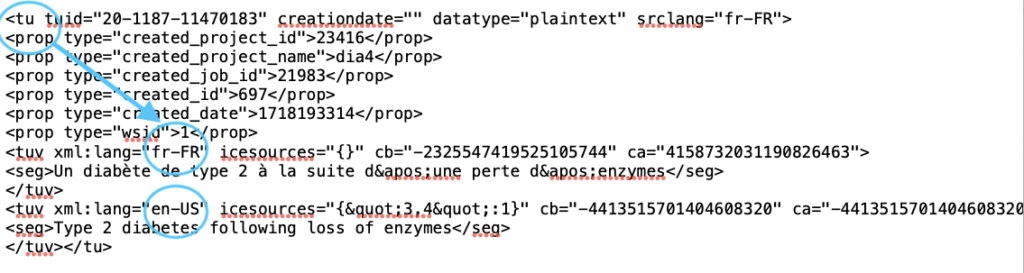
If you are unsure about the languages contained in the TMX file, you can open it with a text editor such as Notepad. Look for a block starting with <tu> (translation unit). Inside this block, you will find two language sections with language codes (for example, en-US, fr-FR, etc.).
Wordscope est un outil de TAO tout-en-un, disponible sur Mac et PC, qui combine plusieurs moteurs de traduction automatique, différentes bases de données terminologiques et l'assistance de ChatGPT. Il offre aux traducteurs professionnels des fonctionnalités avancées pour la traduction, la définition, la réécriture et bien plus encore.
Essayez-le maintenant ! Connectez-vous ou inscrivez-vous pour recevoir un abonnement Bronze gratuit !
Visit pro.wordscope.com to create a translation project.